
Content Approval Workflow with n8n and Slack: Full Setup Guide (2026)

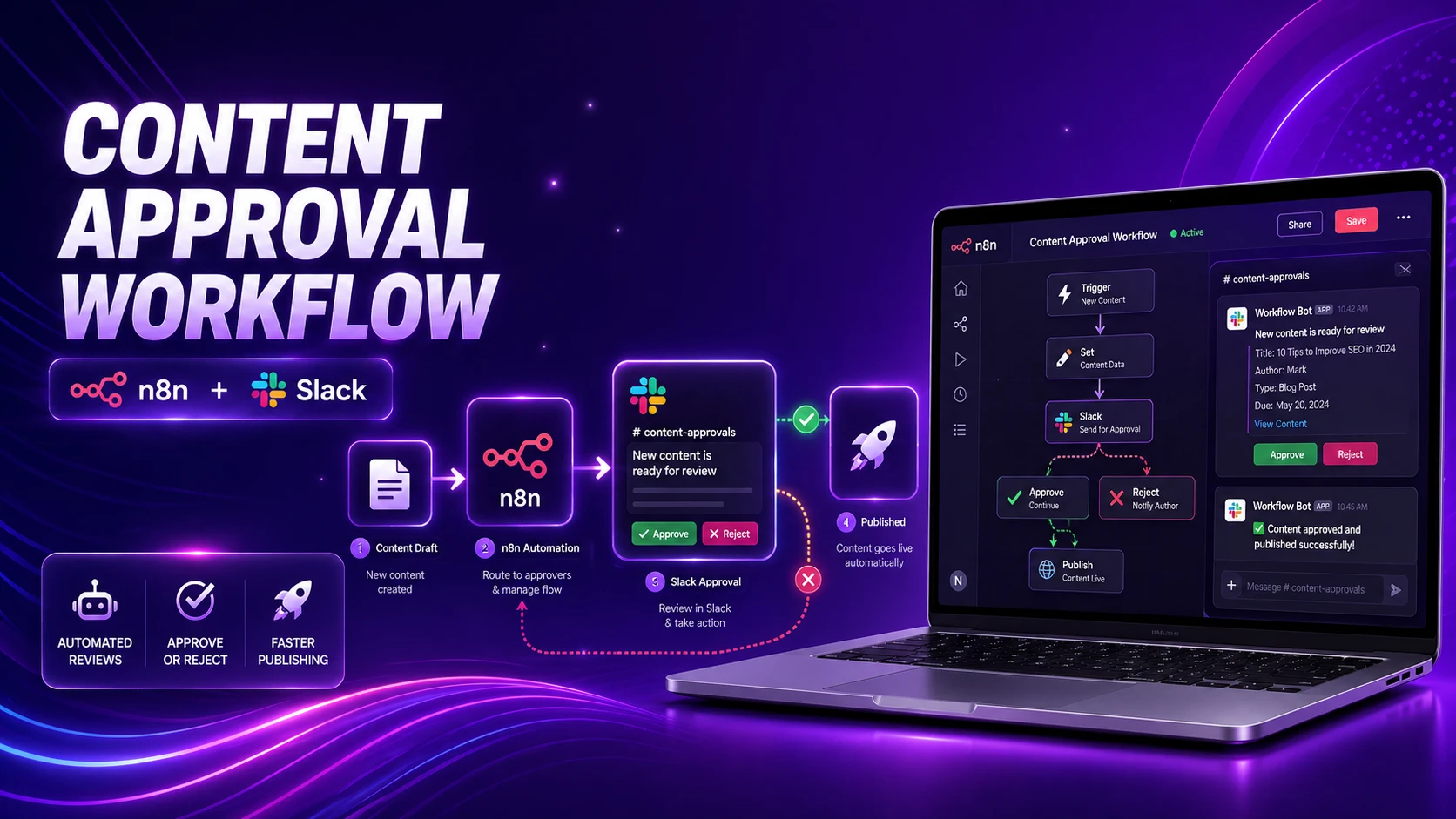
⚡ The Simple Summary
Setting up a WordPress approval workflow means adding a “human checkpoint” to your AI writing process. Here is how it works: An AI writes a draft in WordPress, a tool called n8n sends a message to Slack with “Approve” and “Reject” buttons, and the post only goes live once a real person clicks that button. Instead of letting an AI publish directly to your site (which is risky!), you use Slack as a remote control to make sure every post is perfect before the world sees it.
Setting up AI to write blog posts is easy, but letting it publish automatically is a great way to accidentally post mistakes. Even the best AI models can “hallucinate” or get your brand voice wrong.
The solution is to add a little bit of “healthy friction.” By forcing a human to look at the draft before it goes live, you keep your quality high. We use Slack for this because it’s where most teams already talk. You don’t have to log into WordPress to check a draft—you just glance at a Slack notification, click a button, and you’re done.
What is a WordPress approval workflow?
In simple terms, it’s a “Wait” command for your website. Instead of going from AI → Published, we go AI → Draft → Human Review → Published. WordPress keeps the article hidden as a draft, n8n acts as the middleman to pass messages, and Slack is your approval desk.
The 5-Step Process
| Step | What happens | Why it helps you |
|---|---|---|
| 1 | AI creates a WordPress draft | The content is ready but “hidden” from the public. |
| 2 | n8n sends a Slack message | You get a notification with buttons right in Slack. |
| 3 | A human clicks a button | A real person makes the final call. |
| 4 | Slack tells n8n the decision | The systems talk to each other instantly. |
| 5 | WordPress updates the post | The post is either published or sent back for edits. |
Why use Slack for approvals?
Workflows usually fail when they are too hard to use. If you have to log into WordPress, find the “Posts” menu, and click through three screens, you won’t do it. Slack makes it a single click. Slack’s “Block Kit” allows us to put clear, colorful buttons (like a green Approve button and a red Reject button) directly in your chat window.
Why n8n is the best “Middleman”
Think of n8n as the glue. It connects WordPress, Slack, and your AI. It’s great at “branching”—which is just a fancy way of saying it can do one thing if you click Approve (Publish) and something totally different if you click Reject (Delete or Edit).
How the automation looks (The Blueprint)
1. AI writes the story
          │
          ▼
   n8n (The Middleman)
          │
          ├─ Saves it as a "Draft" in WordPress
          ├─ Sends a message to your Slack channel
          ▼
    Your Slack App
          │
          │ (You click a button)
          ▼
   n8n receives your click
          │
          ├─ If Approved: Changes WordPress status to "Publish"
          └─ If Rejected: Notifies the team to fix it
          ▼
   Your site is updated!
Expert tips for beginners
1. Always start as a Draft: Make sure your automation is set to “status: draft.” This ensures that even if the automation fails, nothing goes live by accident.
2. Use Links: In your Slack message, always include a direct link to the WordPress edit screen. That way, if you see a small typo, you can jump in and fix it before hitting Approve.
3. Acknowledge the click: When you click a button in Slack, make sure n8n sends a message back saying “Post Published!” It feels much better when the system confirms you’ve finished the task.
💡 Quick Pro-Tip
If you have multiple writers, you can even set up the Slack message to tag a specific person to review it. This ensures that the right expert always sees the right post before it goes live!
The most important thing to remember is that automation is meant to help humans, not replace them. By using this Slack-to-WordPress loop, you get the speed of AI with the safety of a human editor. It’s the best of both worlds.
n8n + Slack Approval Workflow: Frequently Asked Questions
Why should I not let AI publish WordPress posts automatically?
Because AI models hallucinate. They can get facts wrong, misrepresent your brand voice, or produce content that is technically complete but clearly off. Publishing automatically means one bad generation goes live before anyone sees it. A human checkpoint in Slack adds one click of friction and prevents all of that. The speed difference is minutes. The risk difference is significant.
Can I use this approval workflow without Slack?
Yes. n8n supports approval flows via email (using a Wait node with a webhook URL embedded in the email body), Microsoft Teams, Discord, or even a simple web form. Slack is the most practical choice for teams that already use it because the interactive buttons (Block Kit) make approval a single click without leaving the app. The core logic works with any messaging tool n8n can talk to.
What happens if the reviewer rejects a post?
That depends on how you build the Reject branch in n8n. The most useful setups send a Slack message back to the team, keep the WordPress post in draft status, and optionally tag a specific person to revise it. You can also have n8n delete the draft automatically if it is genuinely unusable. The Reject path is just another branch — build it to match your editorial process.
Do I need to host n8n myself or can I use the cloud version?
Both work. n8n Cloud is easiest — no server setup required, webhooks work out of the box, and Slack interactive message handling is straightforward. Self-hosted n8n gives more control and lower per-execution cost at scale, but requires your instance is publicly reachable so Slack can send webhook callbacks to it. For beginners, n8n Cloud is the right call.
Can I route different posts to different reviewers based on topic?
Yes. Add an IF or Switch node in n8n before the Slack notification step. Check the post category, tag, or a custom field, then route to a different Slack channel or tag a different user. A development post goes to the tech reviewer, a marketing post goes to the content lead. Conditional branching is one of n8n’s core strengths.