
ChatGPT Login: How to Sign Up, Access Your Account and Fix Login Problems

Quick answer
To log in to ChatGPT, open the official ChatGPT website, select Log in, and use the same authentication method you chose when creating your account. Depending on your account and device, this may be email, phone, Google, Apple, Microsoft or an organisation’s single sign-on system.
When ChatGPT login is not working, first confirm that you are using the correct sign-in method. Then try an incognito window, clear cookies, disable VPNs or browser extensions, and check OpenAI’s service-status page.
ChatGPT login should normally take less than a minute. Problems usually occur because the user chooses a different authentication method from the one used during registration, the browser blocks required cookies or JavaScript, or ChatGPT is experiencing a temporary service problem.
This guide explains how to create a ChatGPT account, sign in on desktop or mobile, reset your password, recover missing chats or subscriptions, and secure your account.
What Is the Official ChatGPT Login Page?
The official ChatGPT website is operated by OpenAI. From the homepage, you can select Log in, create a new account or—in supported locations—try ChatGPT before registering.
The current ChatGPT sign-in screen can offer email, Google, Apple and phone-based access. OpenAI also supports Microsoft authentication and organisation-managed SSO for applicable accounts, although the available buttons can vary by device, location and account type.
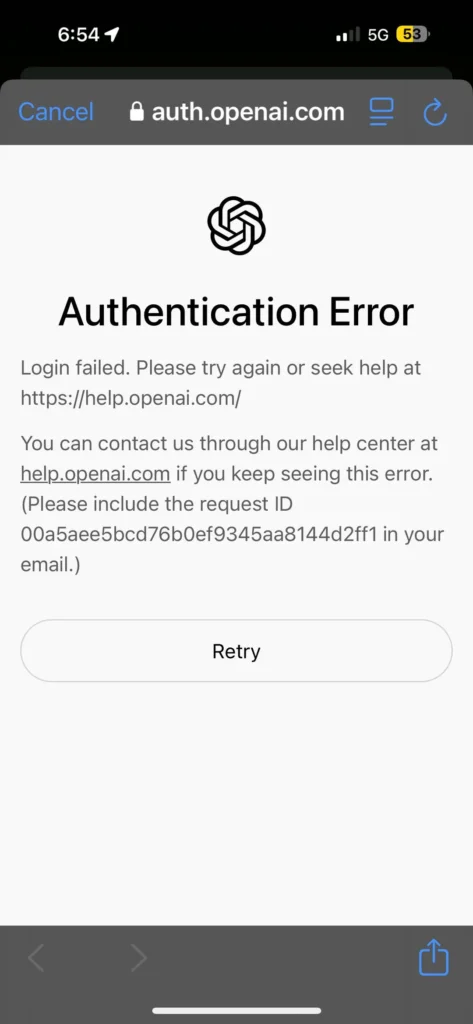
Avoid unofficial websites that ask for your ChatGPT password, verification code or payment information. The official mobile application should also show OpenAI as its publisher in the Apple App Store or Google Play Store.
How to Create a ChatGPT Account
Step 1: Open the official ChatGPT website
Visit the official ChatGPT homepage and select Sign up or Log in or sign up.
Some users may see a Try it first option. This provides limited access without creating an account, but signing in is necessary for account-based features such as saved conversations and additional data controls.
Step 2: Choose your registration method
Available options may include:
- Email address
- Phone number
- Continue with Google
- Continue with Apple
- Continue with Microsoft
- Organisation SSO
Choose carefully. Your original authentication method determines how you should log in later.
For example, someone who created an account using Continue with Google should normally continue using Google rather than trying to enter an OpenAI password.
Step 3: Complete the verification process
OpenAI may ask you to verify your email, phone or identity using an on-screen prompt, email code or mobile-app approval.
Additional verification is more likely when you sign in from a new device, use an unusual location or change sensitive account information.
Step 4: Complete your profile
Follow the on-screen instructions to finish creating the account. You may be asked to provide basic account information or confirm that you meet the applicable age requirements.
Step 5: Start a new conversation
Once registration is complete, enter a question or instruction in the message box. You can start a new chat whenever you want to change topics.
How to Log In to ChatGPT
ChatGPT login on a desktop browser
- Open the official ChatGPT website.
- Select Log in.
- Enter your email address or phone number, or choose your original social-login provider.
- Complete any verification request.
- Wait for your ChatGPT account and conversation history to load.
The most important rule is simple: use the same login method you used when registering.
ChatGPT login with Google
Select Continue with Google, choose the Google account connected to ChatGPT and approve the sign-in request.
If the Google account uses the same email address as an existing email-and-password OpenAI account, OpenAI may allow the methods to connect. However, users who originally registered through Google should generally continue using Google.
ChatGPT login with Apple
Select Continue with Apple and authenticate with your Apple ID.
Users who selected Apple’s Hide My Email feature may have a ChatGPT account connected to an address ending in privaterelay.appleid.com. Trying to log in with a personal email address instead can open a different account or produce a “wrong authentication method” error.
ChatGPT login with Microsoft
Choose the Microsoft authentication option when it is available, then sign in using the Microsoft account originally linked to ChatGPT.
Microsoft authentication may also be used by workplace accounts. If your organisation enforces SSO, you must use the organisation’s SSO option rather than a personal password or social login.
ChatGPT login with a phone number
The current login interface may offer Continue with phone. Enter the phone number associated with the account and follow the verification instructions shown on the screen.
OpenAI states that phone verification is not generally required simply to create a consumer OpenAI account, although phone requirements can differ for other OpenAI services, such as generating a first API key.
ChatGPT login on Android
Install the official ChatGPT application published by OpenAI through Google Play. Open the app and use the same email, phone, Google, Apple or Microsoft account used on the web version.
ChatGPT login on iPhone or iPad
Download the official application published by OpenAI from Apple’s App Store. Sign in using your existing ChatGPT account rather than creating a second account through a different method.
Can You Use ChatGPT Without Logging In?
ChatGPT may offer limited signed-out access through the Try it first option. Availability can depend on your location, device and current OpenAI rollout.
Using ChatGPT without an account is useful for a quick question, but logged-in users receive additional account features such as saved conversations, data export, account deletion controls and access to their account across devices.
Is ChatGPT Free?
Yes. ChatGPT has a Free tier, although usage limits and available models can change.
Free users can access standard chat features and may also receive limited access to web search, file uploads, data analysis, image creation and GPTs. Individual tools may have separate usage limits, and ChatGPT displays a message when a limit has been reached.
Paid plans provide higher limits or additional capabilities, but you do not need a paid subscription simply to create a ChatGPT account.
Why Should You Log In to ChatGPT?
Logging in can provide:
- Saved conversation history
- Access from multiple devices
- File and image uploads
- Web search and data-analysis tools
- Image generation
- Access to available GPTs
- Account security controls
- Data export and deletion options
- Memory and personalisation features, where available
- Access to a paid plan or workplace account
Features and limits vary by plan and can change as ChatGPT is updated.
Why Is ChatGPT Login Not Working?
1. You are using the wrong login method
This is the most common ChatGPT login problem.
An account created through Google, Microsoft or Apple may not have an OpenAI password. Selecting Forgot password will therefore produce no reset email.
Return to the login screen and try the original method:
- Email and password
- Microsoft
- Apple
- Phone
- Organisation SSO
An identity_provider_mismatch error specifically means that the attempted authentication method does not match the method associated with the account.
2. ChatGPT says “There is already a user with this email”
This usually means an account already exists or a previous registration was started but not completed.
Do not keep creating new accounts. Return to the login page and try signing in with the authentication method originally used.
3. You cannot see the Google, Apple or Microsoft button
Try these fixes:
- Hard-refresh the login page.
- Open an incognito or private window.
- Disable browser extensions that alter page content.
- Temporarily disable ad blockers or privacy extensions.
- Try a different browser or device.
Cookie managers and content-blocking extensions can prevent authentication buttons or verification flows from loading.
4. ChatGPT is stuck on “Checking your browser”
This is normally a Cloudflare verification problem.
OpenAI recommends:
- Disable your VPN or proxy.
- Temporarily disable ad blockers, script blockers and privacy tools.
- Allow cookies and JavaScript for ChatGPT and OpenAI authentication domains.
- Open an incognito window.
- Try another network, such as mobile data.
- Ask your IT department whether a corporate firewall is blocking the verification process.
The problem is often caused by an aggressive privacy extension rather than ChatGPT itself.
5. You see “Suspicious login behaviour”
OpenAI may temporarily restrict login attempts after unusual activity or multiple failed attempts.
Clear your cookies, turn off your VPN, switch networks and avoid repeatedly submitting the form. OpenAI advises waiting for up to one hour before trying again in some suspicious-login cases.
6. Your verification code is not working
Always use the newest verification code. Older codes may expire when a replacement is requested.
When an email code does not arrive:
- Check spam and junk folders.
- Confirm that you entered the correct email.
- Request a new code.
- Use the latest code only.
- Check whether your email provider is delaying automated messages.
- Disable a VPN or blocker and try again.
OpenAI may also send a push notification to an already signed-in ChatGPT mobile app, allowing you to approve or reject a login attempt.
7. ChatGPT displays a blank page or “Something went wrong”
Try the following in order:
- Wait at least 60 seconds and reload.
- Check OpenAI’s official status page.
- Clear ChatGPT cookies and site data.
- Open an incognito window.
- Disable extensions.
- Try a different browser.
- Switch to another network.
- Restart the browser or device.
A service outage cannot be fixed by resetting your password. Checking the official status page first saves a great deal of ceremonial cache-clearing.
8. Your ChatGPT Plus subscription or chat history is missing
You may have logged into a different account.
For example, using an email address and password can sometimes open a different account from one previously created through Apple’s hidden-email system.
Check:
- The displayed account email
- The original login provider
- Whether you used Apple Hide My Email
- Whether the subscription was purchased through another account
- Whether you are viewing the correct personal or business workspace
OpenAI does not automatically merge separate ChatGPT accounts, histories or subscriptions.
9. Your workplace account requires SSO
Enter your work email and select the organisation’s SSO option.
Errors such as require_sso_login mean that your organisation requires authentication through its identity provider. A workplace administrator may need to confirm that your account has been added to the correct access group.
10. Your account was deactivated or suspended
Check the email address associated with the account for an explanation or appeal instructions.
Changing browsers or passwords will not restore a suspended account. Contact OpenAI Support and include the account email, sign-in method, error message and any relevant billing information.
How to Reset Your ChatGPT Password
Password reset works only for accounts that use an OpenAI password.
- Log out or open a private browser window.
- Open the ChatGPT login page.
- Enter your email address or phone number.
- Select Continue.
- Choose Forgot password?
- Follow the instructions in the reset email.
Check your spam folder if the email does not arrive.
Users who registered through Google, Microsoft or Apple may not have an OpenAI password to reset. They must reset the password directly through the relevant provider instead.
How to change your password while logged in
Open:
Settings → Account → Add or update password
Changing your ChatGPT password changes the password for the wider OpenAI account, including access to the OpenAI API Platform where applicable.
Can You Change Your ChatGPT Login Method?
The answer depends on how the account was created.
An account originally created with email and password may later be accessible through Google, Microsoft or Apple when the email addresses match.
An account originally created through social login or organisation SSO generally cannot simply switch to a new OpenAI password. Continue using the original provider unless OpenAI Support or an Enterprise administrator provides another solution.
Creating another account with a different method is usually a bad workaround because chats, workspaces and subscriptions are not automatically transferred or merged.
How to Secure Your ChatGPT Account
Enable multi-factor authentication
Go to:
Settings → Security → Multi-factor authentication
Available verification methods may include:
- Authenticator application
- Push notification
- SMS or WhatsApp code
- Passkey
- Email verification
Available methods vary by country, device and account. Once enabled, MFA applies across OpenAI services associated with the account, including ChatGPT and the API Platform.
Review active ChatGPT sessions
Open:
Settings → Security → Active sessions
The session list may show the device, browser, approximate location, sign-in date and related OpenAI application.
Log out any device you do not recognise. You can also select Log out of all sessions, although complete removal may take up to 30 minutes.
Never approve an unknown login request
If the ChatGPT mobile app displays a login approval you did not initiate, deny the request.
Then:
- Change your password, when the account uses one.
- Review active sessions.
- Log out unfamiliar devices.
- Enable MFA.
- Contact support if suspicious activity continues.
Use a unique password
Do not reuse the password from your email, WordPress website, social accounts or banking services. A password manager is considerably more reliable than adding “123!” to an old password and hoping criminals respect the effort.
How to Manage ChatGPT Privacy After Login
Open Settings → Data Controls to manage how your conversations are used.
Turning off Improve the model for everyone allows conversations to remain in your history without being used to improve OpenAI’s models. The setting synchronises across devices connected to the account.
You can also use Temporary Chat for conversations that should not appear in your history or create memories. OpenAI states that Temporary Chats are not used to train its models and are deleted from its systems after 30 days, although they may be reviewed for abuse monitoring.
Avoid entering passwords, private keys, financial account details, medical records or confidential client data into an ordinary consumer chat unless you fully understand the applicable privacy and workplace policies.
How to Use ChatGPT After Logging In
1. Write a clear request
Tell ChatGPT:
- What you need
- Who the answer is for
- The desired format
- Important limitations
- Any examples it should follow
Instead of:
Write about marketing.
Try:
Create a 700-word guide explaining B2B marketing automation to SaaS founders. Include a comparison table and five practical examples.
2. Continue the conversation
You do not need to repeat the entire request. Ask ChatGPT to:
- Expand a section
- Shorten the answer
- Change the tone
- Add examples
- Explain a difficult term
- Convert the response into a table
- Critique its previous answer
3. Start a new chat for a new subject
Starting separate conversations helps keep context organised. A long chat covering taxes, skincare, WordPress and dinner plans eventually becomes the intellectual equivalent of a kitchen drawer.
4. Upload relevant files
Depending on your plan and current limits, ChatGPT can analyse documents, spreadsheets and images. Remove confidential or unnecessary information before uploading files.
5. Verify important information
ChatGPT can make mistakes. Check legal, medical, financial and security-related information against current authoritative sources before acting on it.
Frequently Asked Questions About ChatGPT Login
What is the correct ChatGPT login website?
Use the official ChatGPT website operated by OpenAI. Check that the domain and application publisher are genuine before entering account credentials.
Can I log in to ChatGPT with Google?
Yes. Select Continue with Google and use the same Google account connected during registration.
Can I log in to ChatGPT with Apple?
Yes. Continue using Apple when the account was created with Apple. This is particularly important when Apple’s Hide My Email feature was used.
Can I log in to ChatGPT with Microsoft?
Microsoft authentication is supported for applicable accounts. Some business accounts may instead require organisation-managed SSO.
Can I log in with a phone number?
Phone-based login is available for supported accounts and locations through the Continue with phone option.
Do I need a phone number to create a ChatGPT account?
OpenAI states that phone verification is not generally required to create a consumer OpenAI account. Other OpenAI services can have different verification requirements.
Can I use ChatGPT without an account?
Limited signed-out access may be available through Try it first, but account features such as saved history and expanded data controls require login.
Why am I not receiving a password-reset email?
The account may have been created through Google, Microsoft or Apple and therefore may not have an OpenAI password. Otherwise, check the email address and spam folder before requesting another reset.
Why does ChatGPT say “Wrong authentication method”?
You are attempting to sign in through a different provider from the one used to register. Return to the login page and choose the original method.
Why has my ChatGPT history disappeared?
You may be signed into a different account or workspace. Check the account email, social provider and workspace selector.
Can I use the same ChatGPT account on multiple devices?
Yes. Sign in using the same account and authentication method. Enable MFA and review active sessions to protect account access.
Can I log out of ChatGPT on every device?
Yes. Open Settings → Security → Active sessions and select Log out of all sessions. It may take up to 30 minutes to remove every session.
Is ChatGPT free?
Yes. A Free tier is available, although models, features and usage limits can change.
How do I delete my ChatGPT account?
Open Settings → Account → Delete account, or submit a request through OpenAI’s Privacy Portal. Account deletion is permanent and cannot be undone.
Does deleting ChatGPT cancel an Apple or Google Play subscription?
Not necessarily. OpenAI advises users who subscribed through Apple or Google Play to cancel the subscription directly through the relevant application store.
What should I do if ChatGPT is down?
Check OpenAI’s official status page. If an active incident is reported, wait until the service is restored rather than repeatedly resetting your password or account.
ChatGPT Login Checklist
When you cannot access your account, follow this order:
- Confirm that you are on the official ChatGPT website.
- Use the original email, Google, Apple, Microsoft, phone or SSO method.
- Check OpenAI’s service-status page.
- Try an incognito window.
- Clear ChatGPT cookies and site data.
- Disable VPNs, proxies and blocking extensions.
- Allow cookies and JavaScript.
- Try another browser, device or network.
- Reset the password only if the account uses an OpenAI password.
- Contact OpenAI Support with the exact error message if the problem continues.
Most ChatGPT login problems are authentication-method mismatches rather than broken accounts. Start by identifying how the account was originally created; that one detail solves a surprising percentage of login drama.