Notion Template Vault: 100+ Free Templates for Students, Freelancers & Businesses


The best free Notion templates are the ones that work the way you already think, not the ones that require a 45-minute YouTube tutorial before you can enter your first task. This post covers the templates I’ve actually used, across three years of daily Notion work, organized by who they’re for and what they’re genuinely good at. I’ve also flagged the ones that looked impressive and wasted my time, because there are a few of those too.
Before getting into the list: if you’re new to Notion, the template gallery inside the app (Templates button in the left sidebar) is a reasonable starting point but skews heavily toward aesthetic over usability. Many of the templates I’ve found most useful came from Notion’s community, creator websites, and Gumroad listings where the creator was solving a real problem rather than building a showcase.
What to Check Before You Duplicate Any Template
I’ve duplicated somewhere around 60 templates over the past three years and abandoned roughly a third of them within three weeks. The ones I abandoned had a few patterns in common:
Too many linked databases. Notion templates that connect 6–8 databases together look impressive in the creator’s walkthrough video. In practice, adding a single task means touching three different views to make sure everything links correctly. If a template requires you to understand its architecture before you can use it, that’s overhead you’ll resent by week two.
Formulas built for older Notion syntax. Notion updated its formula engine significantly in 2023. Templates built before that update often have formula columns that show errors rather than values. Before committing to a template with calculation-heavy dashboards, open a formula column and check whether it’s actually working.
Empty templates that don’t show you how they’re meant to be used. A blank database isn’t a template. The best templates ship with 3–5 example entries that demonstrate the workflow. Without them, you’re guessing at the intended behavior.
Average time to properly duplicate and customize a Notion template to the point where it’s actually usable: about 25 minutes for a simple one, 2–3 hours for anything with multiple linked databases. Factor that into how ambitiously you pick.
Student Templates
Class Notes Database
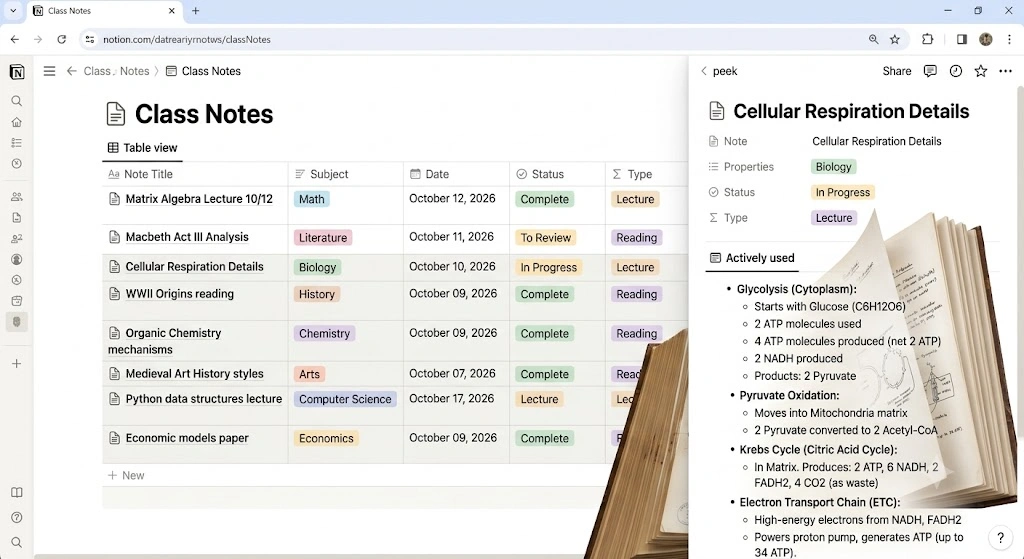
Notion’s own Class Notes template is genuinely one of the better ones in this category. It’s a simple database with Subject, Date, Status (In Progress / Complete / To Review), and a linked view that groups notes by course. I’ve been using a modified version of this for just under two years and it’s become the thing I’d least want to lose.
What I changed from the default: added a “Type” property (Lecture / Reading / Lab / Discussion) and a linked relation to an Assignments database so I can see which assignment a set of notes connects to. Those two additions made it significantly more useful than the base template.
Semester Planner
This one is better sourced from the community than from Notion’s gallery. The Easlo Semester Planner template is a free download that includes a course overview page, a weekly schedule view, and a grade tracker. Setup takes about 20 minutes to customize for your actual courses.
One thing I appreciated: it ships with example data populated across all three databases, so you can see how the relationships work before you start deleting the sample entries. Most student templates don’t bother with this.
Reading List & Book Tracker
A filtered table with: Title, Author, Status (To Read / Reading / Read), Date Finished, Rating, and a Notes toggle for each entry. Notion’s built-in Reading List template gets this mostly right. The one I use adds a Genre tag and a Source property (where I heard about the book) which over time has become a useful filter — I can see that the books I enjoyed most in a given year came from a specific newsletter or a particular person’s recommendations.
Study Session Timer + Habit Tracker
This is where I’d tell most students to save themselves some time and just use a separate app. I’ve tried three Notion-based study timer setups. The best of them was a Pomodoro tracker that logged each session to a database with date, duration, subject, and focus quality (1–5). After six weeks of data, I could see that my longest productive sessions happened on Tuesday and Wednesday mornings, which was actually useful.
The reason I eventually stopped using it: there’s a 3–4 second lag opening Notion on my phone when I want to quickly log a session, and that friction was enough to make me skip logging more often than not. Toggl Track solves the same problem with less ceremony. I’m including this category because the template itself works, just know what you’re trading off.
Assignment Tracker
Table with: Assignment name, Course, Due Date, Status, Priority, and a toggle for notes/rubric. Sort by Due Date ascending. This is one of those templates simple enough to build yourself in 10 minutes, but the community versions save you from having to think about which properties actually matter. The Thomas Frank Assignment Tracker is free and clean — no unnecessary linked databases, just a well-structured table.
Freelancer Templates
Client Tracker / CRM
This is the category I’ve invested the most time in, because a functional client tracker genuinely changes how you manage a freelance pipeline. After testing four different versions over 18 months, the one I’ve settled on is a modified version of a free template by Notions HQ that uses a single database with filtered views rather than multiple linked databases.
The setup: one Clients database with properties for Name, Status (Lead / Proposal Sent / Active / Completed / Paused), Contact Email, Project Value (currency), Start Date, End Date, and a Notes toggle. Four views off the same database: a Kanban board grouped by Status, a table sorted by Start Date, a gallery for clients with logo attachments, and a filtered view for active clients only.
This works because everything lives in one place. Adding a new client takes 45 seconds. There’s no linking, no relations to maintain, no chance of data falling out of sync between databases.
Invoice and Payment Tracker
I use Notion for tracking invoices rather than generating them (I use a separate tool for the actual PDF). The template structure: Invoice Number, Client (linked relation to Client database), Amount, Date Sent, Due Date, Status (Draft / Sent / Paid / Overdue), and a Notes field for payment terms or unusual arrangements.
A calculated property that shows Days Overdue for any invoice with a Due Date in the past and a Status of Sent is the most useful thing in this template. It’s the one column that makes you actually look at the table.
Project Proposal Builder
I’ll be honest about this one: the Notion template versions I’ve tried for proposals aren’t as good as a well-formatted Google Doc. Proposals need to look right when exported or shared, and Notion’s export formatting is unreliable enough that I’ve had proposals look broken when a client opened them in their browser.
Where I do use a Notion template in the proposal workflow: a pre-project questionnaire page that I share with prospective clients via a Notion share link. It collects their answers in a structured format (timeline, budget range, technical requirements, decision criteria) which I then use to write the actual proposal elsewhere. That specific use case works well.
Time Tracking Log
A table with Date, Client, Project, Hours, Hourly Rate, and a formula column calculating Total (Hours × Hourly Rate). A rollup at the bottom of each client’s filtered view showing total hours and total earnings for the month.
This works fine for freelancers billing fewer than 6 clients simultaneously. Above that, the friction of manually logging time in Notion becomes noticeable, and a proper time tracker (Toggl, Harvest) will give you better reporting with less effort. The template has its place for people who want their time data in the same workspace as everything else and don’t mind the manual entry.
The Template I Regret Using: The “Ultimate Freelance Business Hub”
There’s a category of Notion templates with names like this — large, ambitions systems with 10+ linked databases covering everything from client management to personal finances to content calendars to goal tracking. I spent a Saturday afternoon setting one up about two years ago.
The first problem was the formulas. The template was built in 2022, and by the time I duplicated it, roughly 30% of the formula columns were showing errors due to Notion’s 2023 formula syntax changes. The revenue dashboard — the part I most wanted — was completely broken. The creator had stopped maintaining it.
The second problem was the setup overhead. The template came with a “setup guide” page that was itself 1,400 words long. I followed it carefully. By the time I’d populated all the databases with my real clients, projects, and rates, I’d spent about four hours on setup. I used it actively for six weeks, then found myself maintaining it less and less until I stopped opening it entirely around month three.
The template wasn’t badly designed. The concept was sound. It just required a level of ongoing commitment that only makes sense if Notion is genuinely the center of your work life and not just one tool among several. If you spend most of your day in Notion, these large systems might work for you. I don’t, and they didn’t work for me.
Business Templates
Company Wiki / Team Handbook
This is Notion’s strongest category. The Company Wiki template from Notion’s own gallery is one of their better official templates — a hierarchical page structure with sections for Team, Processes, Tools, and Policies. It’s the kind of thing that takes a few hours to populate but saves many more hours of “where does X live?” conversations.
What makes this one usable is that it’s flat rather than deeply nested. The instinct with a company wiki is to add more hierarchy — team pages under department pages under company pages. Every layer of nesting makes things harder to find. The template resists this by keeping most content one or two levels deep.
Meeting Notes Database
A database where each entry is a meeting, with properties for Date, Attendees (multi-select), Type (1:1 / Team / Client / External), and a toggle for the notes body. A filtered view showing only the current week is the default open view. Rollup relations to relevant projects or client records are optional additions.
I’ve used this pattern for about 18 months. The main benefit over a folder of individual pages is that you can filter by attendee or meeting type and get a history of everything discussed with a specific person or about a specific project. That history has been useful more times than I expected.
OKR and Goal Tracker
The templates I’ve seen in this category range from elegant (a single database with Objective, Key Results as sub-properties, Owner, and Status) to deeply overcomplicated (cascading linked databases from company → team → individual level with progress rollups at every layer).
The ones that get used are the simple ones. A table with Objective, three Key Result columns, a Progress percentage (manually updated, not calculated), and a Status tag is more likely to be updated weekly than a system that requires navigating four database levels to log a KPI update.
Product Roadmap
A Kanban board with stages: Backlog / In Discovery / In Progress / Shipped / Cancelled. Each card has a Title, Owner, Priority, Estimated Completion Date, and a toggle for context. A timeline view (Notion’s native timeline/Gantt view) off the same database gives you the visual overview.
This is one of the cases where Notion’s native capabilities produce a genuinely good result without needing a complex template. The Product Roadmap template in Notion’s gallery is a reasonable starting point.
CRM for Small Teams
The template I was most disappointed in, and I want to be specific about why.
I tried a highly-rated free Notion CRM template that had around 4,200 duplications in the gallery at the time I downloaded it. It used five linked databases: Contacts, Companies, Deals, Activities, and Products. The idea was that you could see a Company’s full relationship history — every contact, every deal, every logged call — from a single record page.
In theory, sound. In practice: every time I added a new activity, I had to open the Activities database, create a record, then manually link it back to the relevant Contact and Company and Deal. Three separate link steps for a 10-minute phone call. After two weeks, I was logging nothing because the overhead outweighed the value.
I replaced it with a single Contacts database with a Notes toggle on each record and a manual Activity Log section inside each contact page. Less structured, zero linking overhead. I’ve used it consistently for eight months.
The lesson isn’t that CRM templates in Notion are bad. It’s that the more a template relies on you correctly maintaining relations between multiple databases, the more likely you are to let it drift. For CRM specifically, unless you’re committed to rigorous process discipline, simpler is almost always more sustainable.

Templates I Use Every Day
Out of everything I’ve tested, four templates have survived long enough to be part of my daily workflow:
Simple Task Database: Title, Status (To Do / In Progress / Done / Archived), Priority (P1–P3), Due Date, and a Project tag. Filtered view showing only tasks that aren’t Archived, sorted by Priority then Due Date. That’s it. No linked databases, no automations, no complexity. I’ve been using a version of this for two and a half years.
Weekly Review Page: A recurring page template (created with Notion’s template button feature inside a database) that prompts: what I shipped this week, what I didn’t finish and why, what’s carrying to next week, one thing to do differently. Takes 10–12 minutes on Friday afternoons. I have 127 of these entries and they’re one of the more useful things I’ve built in Notion.
Reading + Resource Database: Every article, paper, or video I want to retain goes in here with a Title, Source, Tags, Date Added, and a Summary toggle where I write 2–3 sentences about what I actually took from it. The act of writing the summary is the point — it forces enough cognitive engagement that I actually remember roughly 40% more of what I read compared to just saving links.
Meeting Notes Database: Described above. The filtered “this week” view is what I open first on Monday mornings.
How to Actually Evaluate a Template Before Committing to It
Before duplicating anything, I now spend 5 minutes checking:
Is there sample data in every database, or is it empty? An empty template tells you almost nothing about how it’s designed to work.
Does it use more than three linked databases? If yes, I ask whether I actually need all those relations or whether simpler would serve the same purpose.
When was it last updated? For any template with formula columns, check the creation date. Templates from before mid-2023 have a reasonable chance of having broken formulas.
Is there a setup guide, and if so, is it longer than 500 words? A template that needs a long setup guide to use correctly usually means the complexity is baked into the template rather than managed for you.
Can I delete it in 30 days without losing anything irreplaceable? If I have to migrate data out of a failed template experiment, that’s friction that makes me less likely to try new tools. Templates that store unique data (meeting notes, original writing) are higher commitment than templates that just organize information that exists elsewhere.
FAQ
Where’s the best place to find free Notion templates? Notion’s own gallery at notion.so/templates is the largest single source, though quality varies considerably. The Notion subreddit (r/Notion) regularly surfaces community-made templates, often from creators who built them to solve a specific personal or professional problem rather than to sell a system. Gumroad has a large number of free and paid templates with more detailed previews than the official gallery. For student templates specifically, Thomas Frank’s website is consistently well-maintained and the templates are actually tested.
Can I customize a template after duplicating it? Yes, fully. Duplicating a template creates an independent copy in your workspace that has no connection to the original. You can add, remove, or modify any property, view, or page. The only thing you can’t easily change is the fundamental database structure if you’ve already populated it with significant data — adding a new property is easy, but changing a property type (say, from text to select) can lose existing data in that column.
Why do some Notion templates cost money if so many are free? Paid templates generally represent more setup work, more thoughtful design, and ongoing maintenance. The formula issue I described earlier is more common with free templates because creators have less incentive to update them. If you’re planning to use a template as the core system for something important — a full business CRM, a client portal you’ll share externally, a complete personal OS — the $15–40 price of a well-maintained paid template is often worth it for the support documentation and updates alone.
I duplicated a template and the formulas show errors. What do I do? Notion’s formula 2.0 syntax (introduced in 2023) changed how several functions work, particularly around date arithmetic and conditional logic. Click into the broken formula column and look at the formula string — if it uses dateSubtract(), dateAdd(), or nested if() syntax from the old version, you’ll need to rewrite it using the new syntax. Notion’s formula documentation is searchable and covers migration for common patterns. Alternatively, delete the formula column and rebuild it from scratch using the formula 2.0 interface.
Should I build my own template or use someone else’s? Build your own if you have a specific workflow in mind and the template you need doesn’t seem to exist. Notion’s interface is accessible enough that a basic database with 5–6 properties takes 15 minutes to set up. Use someone else’s if you’re new to Notion or exploring a use case you haven’t developed a clear opinion on yet — seeing how someone else solved the problem is a faster way to develop your own intuition than starting from a blank page.
How many templates is too many in one workspace? The number matters less than whether they’re connected. A workspace where your task database links to your project database which links to your client database creates a coherent system. A workspace where you’ve duplicated 20 unrelated templates creates a jumbled archive. My current workspace has six active databases and about 40 archived pages. The six databases I actively use cover 90% of what I do in Notion.
Three years of this has given me one reasonably confident opinion: the best Notion templates are boring ones. A table with five columns that you open every day beats a beautiful 12-database system you open twice and then feel guilty about. The templates in this list lean toward the former.