.p5 *, .p5 *::before, .p5 *::after { box-sizing: border-box; }
.p5 {
font-family: ‘Georgia’, serif;
color: #1a1a1a;
line-height: 1.8;
max-width: 820px;
}
/* ── Meta ── */
.p5-meta {
font-family: ‘system-ui’, sans-serif;
font-size: 13px;
color: #64748b;
background: #f8fafc;
border: 1px solid #e2e8f0;
border-radius: 6px;
padding: 10px 18px;
display: inline-block;
margin-bottom: 30px;
}
.p5-meta strong { color: #0f172a; }
/* ── Quick Answer ── */
.p5-qa {
background: #f0f9ff;
border: 1px solid #7dd3fc;
border-left: 5px solid #0284c7;
border-radius: 8px;
padding: 22px 26px;
margin: 28px 0;
font-family: ‘system-ui’, sans-serif;
}
.p5-qa .qa-tag {
font-size: 10px;
font-weight: 800;
letter-spacing: 3px;
text-transform: uppercase;
color: #0c4a6e;
margin-bottom: 10px;
}
.p5-qa p {
font-size: 15px;
color: #0c4a6e;
margin: 0 0 10px;
line-height: 1.75;
}
.p5-qa p:last-child { margin-bottom: 0; }
.p5-qa strong { color: #082f49; }
/* ── TL;DR ── */
.p5-tldr {
background: #0c1a2e;
border-left: 5px solid #0284c7;
border-radius: 10px;
padding: 28px 32px;
margin: 32px 0;
}
.p5-tldr .tldr-tag {
font-family: ‘system-ui’, sans-serif;
font-size: 10px;
font-weight: 800;
letter-spacing: 4px;
text-transform: uppercase;
color: #38bdf8;
margin-bottom: 10px;
}
.p5-tldr h3 {
font-family: ‘system-ui’, sans-serif;
font-size: 18px;
font-weight: 700;
color: #fff;
margin: 0 0 16px;
}
.p5-tldr .tldr-cols {
display: grid;
grid-template-columns: 1fr 1fr;
gap: 20px;
}
.p5-tldr .col-head {
font-family: ‘system-ui’, sans-serif;
font-size: 10px;
font-weight: 800;
letter-spacing: 3px;
text-transform: uppercase;
color: #38bdf8;
margin-bottom: 10px;
}
.p5-tldr ul {
margin: 0;
padding-left: 18px;
}
.p5-tldr ul li {
font-family: ‘system-ui’, sans-serif;
font-size: 13px;
color: #bae6fd;
margin-bottom: 7px;
line-height: 1.55;
}
.p5-tldr ul li strong { color: #f0f9ff; }
.p5-tldr .tldr-bottom {
margin-top: 18px;
padding-top: 16px;
border-top: 1px solid #1e3a5f;
font-family: ‘system-ui’, sans-serif;
font-size: 13px;
color: #7dd3fc;
font-style: italic;
}
/* ── Section label ── */
.p5-label {
display: block;
font-family: ‘system-ui’, sans-serif;
font-size: 10px;
font-weight: 800;
letter-spacing: 4px;
text-transform: uppercase;
color: #0284c7;
margin: 52px 0 6px;
}
/* ── Concept explainer box ── */
.concept-box {
border: 1px solid #e2e8f0;
border-radius: 10px;
overflow: hidden;
margin: 24px 0;
}
.concept-box-head {
background: #0c1a2e;
padding: 14px 22px;
font-family: ‘system-ui’, sans-serif;
font-size: 14px;
font-weight: 700;
color: #bae6fd;
display: flex;
align-items: center;
gap: 10px;
}
.concept-box-head .cb-icon { font-size: 16px; }
.concept-box-body {
padding: 20px 22px;
background: #fff;
font-family: ‘system-ui’, sans-serif;
font-size: 14px;
color: #334155;
line-height: 1.75;
}
.concept-box-body p { margin: 0 0 12px; }
.concept-box-body p:last-child { margin-bottom: 0; }
.concept-box-body ul, .concept-box-body ol {
padding-left: 20px;
margin: 8px 0 12px;
}
.concept-box-body li { margin-bottom: 6px; }
.concept-box-body code {
background: #f1f5f9;
padding: 2px 7px;
border-radius: 4px;
font-size: 12px;
font-family: ‘Courier New’, monospace;
color: #0f172a;
word-break: break-all;
}
.concept-box-body pre {
background: #0c1a2e;
color: #e2e8f0;
padding: 16px 18px;
border-radius: 8px;
overflow-x: auto;
font-size: 12px;
font-family: ‘Courier New’, monospace;
line-height: 1.7;
margin: 12px 0;
}
.concept-box-body pre .comment { color: #4a6580; }
.concept-box-body pre .key { color: #38bdf8; }
.concept-box-body pre .val { color: #86efac; }
.concept-box-body pre .cmd { color: #fde68a; }
/* ── Comparison table: WP-Cron vs Real Cron ── */
.compare-table {
width: 100%;
border-collapse: collapse;
font-family: ‘system-ui’, sans-serif;
font-size: 14px;
margin: 24px 0;
}
.compare-table thead tr { background: #0c1a2e; }
.compare-table thead th {
padding: 13px 16px;
color: #f0f9ff;
font-weight: 600;
text-align: left;
}
.compare-table thead th:first-child { border-radius: 8px 0 0 0; }
.compare-table thead th:last-child { border-radius: 0 8px 0 0; }
.compare-table tbody td {
padding: 12px 16px;
border-bottom: 1px solid #e2e8f0;
color: #334155;
vertical-align: top;
line-height: 1.6;
}
.compare-table tbody tr:nth-child(even) td { background: #f8fafc; }
.compare-table tbody td:first-child {
font-weight: 600;
color: #0f172a;
white-space: nowrap;
}
.yes { color: #15803d; font-weight: 700; }
.no { color: #dc2626; font-weight: 700; }
.part { color: #b45309; font-weight: 700; }
/* ── Diagnostic flow ── */
.diag-flow {
counter-reset: diag-counter;
margin: 24px 0;
}
.diag-step {
display: flex;
gap: 18px;
margin-bottom: 6px;
position: relative;
}
.diag-step::before {
counter-increment: diag-counter;
content: counter(diag-counter);
background: #0284c7;
color: #fff;
font-family: ‘system-ui’, sans-serif;
font-size: 13px;
font-weight: 800;
width: 28px;
height: 28px;
border-radius: 50%;
display: flex;
align-items: center;
justify-content: center;
flex-shrink: 0;
margin-top: 14px;
}
.diag-step-inner {
border: 1px solid #e2e8f0;
border-radius: 8px;
flex: 1;
overflow: hidden;
}
.diag-step-q {
background: #f8fafc;
padding: 12px 16px;
font-family: ‘system-ui’, sans-serif;
font-size: 14px;
font-weight: 700;
color: #0f172a;
border-bottom: 1px solid #e2e8f0;
}
.diag-step-a {
padding: 12px 16px;
font-family: ‘system-ui’, sans-serif;
font-size: 13px;
color: #334155;
line-height: 1.65;
background: #fff;
}
.diag-step-a code {
background: #f1f5f9;
padding: 2px 6px;
border-radius: 4px;
font-size: 12px;
font-family: ‘Courier New’, monospace;
word-break: break-all;
}
.diag-step-a .fix-tag {
display: inline-block;
background: #dbeafe;
color: #1e40af;
font-size: 11px;
font-weight: 700;
padding: 2px 8px;
border-radius: 10px;
margin-right: 6px;
letter-spacing: .3px;
}
/* ── Host cron tabs ── */
.host-section {
border: 1px solid #e2e8f0;
border-radius: 10px;
overflow: hidden;
margin: 20px 0;
}
.host-section-head {
background: #f0f9ff;
padding: 13px 18px;
font-family: ‘system-ui’, sans-serif;
font-size: 14px;
font-weight: 700;
color: #0c4a6e;
border-bottom: 1px solid #bae6fd;
display: flex;
align-items: center;
justify-content: space-between;
}
.host-section-head .h-badge {
background: #bae6fd;
color: #0c4a6e;
font-size: 11px;
font-weight: 700;
padding: 2px 10px;
border-radius: 10px;
}
.host-section-body {
padding: 16px 18px;
background: #fff;
font-family: ‘system-ui’, sans-serif;
font-size: 14px;
color: #334155;
line-height: 1.7;
}
.host-section-body ol, .host-section-body ul { padding-left: 20px; margin: 8px 0; }
.host-section-body li { margin-bottom: 6px; }
.host-section-body code {
background: #f1f5f9;
padding: 2px 7px;
border-radius: 4px;
font-size: 12px;
font-family: ‘Courier New’, monospace;
word-break: break-all;
}
.host-section-body pre {
background: #0c1a2e;
color: #e2e8f0;
padding: 14px 16px;
border-radius: 8px;
overflow-x: auto;
font-size: 12px;
font-family: ‘Courier New’, monospace;
line-height: 1.7;
margin: 10px 0;
}
.host-section-body pre .comment { color: #4a6580; }
.host-section-body pre .key { color: #38bdf8; }
.host-section-body pre .val { color: #86efac; }
.host-section-body pre .cmd { color: #fde68a; }
/* ── Callouts ── */
.p5-callout {
border-radius: 8px;
padding: 18px 22px;
margin: 20px 0;
font-family: ‘system-ui’, sans-serif;
font-size: 14px;
line-height: 1.7;
}
.p5-callout .c-label {
font-size: 10px;
font-weight: 800;
letter-spacing: 3px;
text-transform: uppercase;
margin-bottom: 7px;
display: block;
}
.c-tip { background: #f0fdf4; border-left: 4px solid #22c55e; color: #14532d; }
.c-tip .c-label { color: #15803d; }
.c-warn { background: #fffbeb; border-left: 4px solid #f59e0b; color: #78350f; }
.c-warn .c-label { color: #b45309; }
.c-info { background: #f0f9ff; border-left: 4px solid #0284c7; color: #0c4a6e; }
.c-info .c-label { color: #0369a1; }
.c-red { background: #fef2f2; border-left: 4px solid #ef4444; color: #7f1d1d; }
.c-red .c-label { color: #dc2626; }
.c-code { background: #0c1a2e; border-left: 4px solid #38bdf8; color: #bae6fd; font-family: ‘system-ui’, sans-serif; }
.c-code .c-label { color: #38bdf8; }
.c-code code {
background: rgba(255,255,255,.08);
padding: 2px 7px;
border-radius: 4px;
font-size: 12px;
font-family: ‘Courier New’, monospace;
color: #86efac;
}
/* ── Cron event table ── */
.cron-table {
width: 100%;
border-collapse: collapse;
font-family: ‘system-ui’, sans-serif;
font-size: 13px;
margin: 20px 0;
}
.cron-table thead tr { background: #0c1a2e; }
.cron-table thead th {
padding: 11px 13px;
color: #bae6fd;
font-weight: 600;
text-align: left;
}
.cron-table tbody td {
padding: 10px 13px;
border-bottom: 1px solid #e2e8f0;
color: #334155;
vertical-align: top;
line-height: 1.55;
}
.cron-table tbody tr:nth-child(even) td { background: #f8fafc; }
.cron-table tbody td:first-child {
font-family: ‘Courier New’, monospace;
font-size: 12px;
color: #0f172a;
font-weight: 600;
white-space: nowrap;
}
.freq-badge {
display: inline-block;
padding: 2px 8px;
border-radius: 10px;
font-size: 11px;
font-weight: 700;
}
.freq-hourly { background: #dcfce7; color: #15803d; }
.freq-daily { background: #dbeafe; color: #1d4ed8; }
.freq-twice { background: #fef3c7; color: #b45309; }
.freq-weekly { background: #f3e8ff; color: #6b21a8; }
/* ── Plugin CTA block ── */
.p5-plugin-cta {
border: 2px solid #0284c7;
border-radius: 12px;
padding: 28px 32px;
margin: 36px 0;
background: linear-gradient(135deg, #f0f9ff 0%, #e0f2fe 100%);
display: flex;
gap: 24px;
align-items: flex-start;
}
.p5-plugin-cta .pct-icon {
font-size: 44px;
flex-shrink: 0;
line-height: 1;
}
.p5-plugin-cta .pct-body {}
.p5-plugin-cta .pct-eyebrow {
font-family: ‘system-ui’, sans-serif;
font-size: 10px;
font-weight: 800;
letter-spacing: 3px;
text-transform: uppercase;
color: #0369a1;
margin-bottom: 6px;
}
.p5-plugin-cta h3 {
font-family: ‘system-ui’, sans-serif;
font-size: 20px;
font-weight: 800;
color: #0c1a2e;
margin: 0 0 8px;
}
.p5-plugin-cta p {
font-family: ‘system-ui’, sans-serif;
font-size: 14px;
color: #0c4a6e;
margin: 0 0 16px;
line-height: 1.65;
}
.p5-plugin-cta ul {
margin: 0 0 18px;
padding-left: 18px;
font-family: ‘system-ui’, sans-serif;
font-size: 13px;
color: #075985;
}
.p5-plugin-cta ul li { margin-bottom: 5px; }
.p5-plugin-cta a {
display: inline-block;
background: #0284c7;
color: #fff;
font-family: ‘system-ui’, sans-serif;
font-weight: 700;
font-size: 14px;
padding: 11px 24px;
border-radius: 8px;
text-decoration: none;
}
.p5-plugin-cta a:hover { background: #0369a1; color: #fff; }
/* ── WP-CLI reference table ── */
.cli-table {
width: 100%;
border-collapse: collapse;
font-family: ‘system-ui’, sans-serif;
font-size: 13px;
margin: 20px 0;
}
.cli-table thead tr { background: #0c1a2e; }
.cli-table thead th {
padding: 11px 13px;
color: #bae6fd;
font-weight: 600;
text-align: left;
}
.cli-table tbody td {
padding: 10px 13px;
border-bottom: 1px solid #e2e8f0;
color: #334155;
vertical-align: top;
}
.cli-table tbody tr:nth-child(even) td { background: #f8fafc; }
.cli-table tbody td:first-child {
font-family: ‘Courier New’, monospace;
font-size: 12px;
color: #0c4a6e;
font-weight: 600;
}
/* ── FAQ ── */
.p5-faq {
border: 1px solid #e2e8f0;
border-radius: 8px;
margin-bottom: 12px;
overflow: hidden;
}
.p5-faq .faq-q {
font-family: ‘system-ui’, sans-serif;
font-size: 16px;
font-weight: 600;
color: #0f172a;
padding: 17px 22px;
background: #f8fafc;
border-bottom: 1px solid #e2e8f0;
}
.p5-faq .faq-a {
font-family: ‘system-ui’, sans-serif;
font-size: 15px;
color: #334155;
padding: 17px 22px;
line-height: 1.75;
}
.p5-faq .faq-a code {
background: #f1f5f9;
padding: 2px 6px;
border-radius: 4px;
font-size: 13px;
font-family: ‘Courier New’, monospace;
}
/* ── Final CTA ── */
.p5-cta {
background: linear-gradient(135deg, #0c1a2e 0%, #0c2a1a 100%);
border-radius: 10px;
padding: 34px;
margin: 44px 0;
text-align: center;
border: 1px solid #164e63;
}
.p5-cta h3 {
font-family: ‘system-ui’, sans-serif;
font-size: 21px;
font-weight: 800;
color: #fff;
margin: 0 0 10px;
}
.p5-cta p {
font-family: ‘system-ui’, sans-serif;
font-size: 15px;
color: #7dd3fc;
margin: 0 0 20px;
line-height: 1.6;
}
.p5-cta a {
display: inline-block;
background: #0284c7;
color: #fff;
font-family: ‘system-ui’, sans-serif;
font-weight: 700;
font-size: 15px;
padding: 13px 28px;
border-radius: 8px;
text-decoration: none;
}
.p5-cta a:hover { background: #0369a1; color: #fff; }
@media (max-width: 620px) {
.p5-tldr .tldr-cols { grid-template-columns: 1fr; }
.p5-plugin-cta { flex-direction: column; gap: 14px; padding: 22px; }
.p5-plugin-cta .pct-icon { font-size: 32px; }
.p5-cta { padding: 24px; }
}
Tested: WordPress 6.7 · PHP 8.2 · WP-CLI 2.10 |
Updated: March 2026 |
By: Liza Kliko
Quick Answer — What Is a WordPress Cron Job?
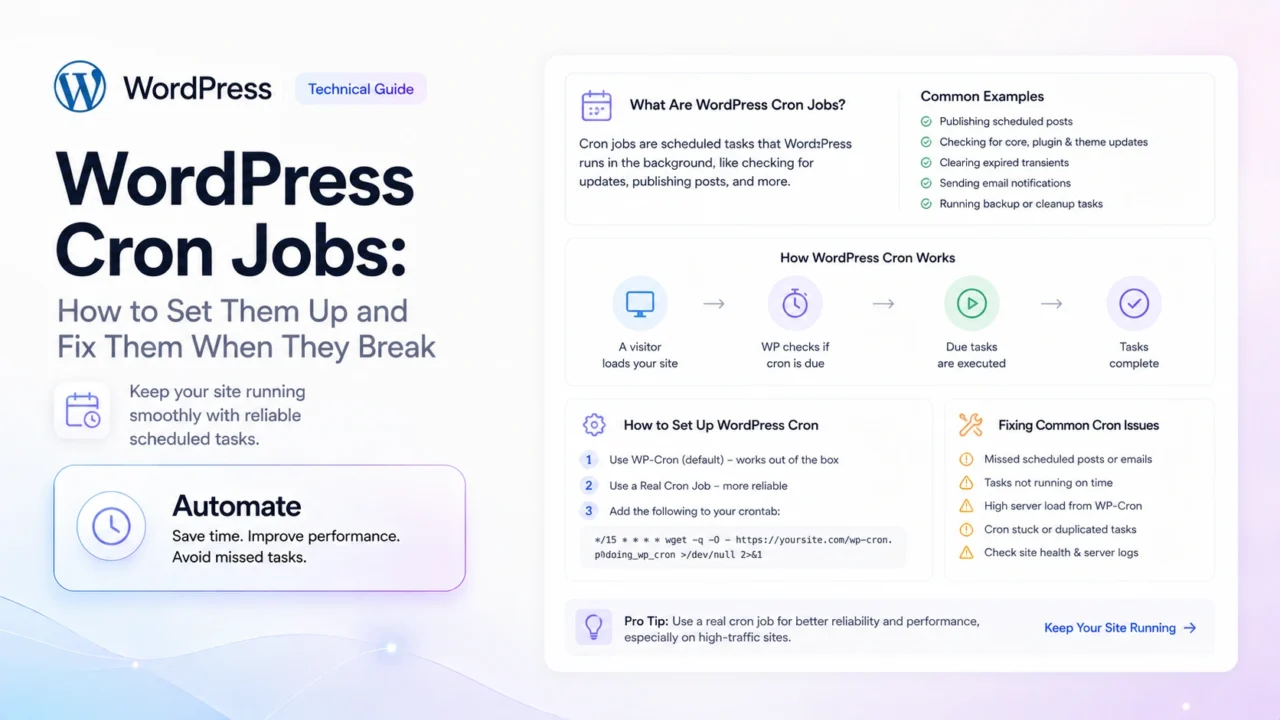
A WordPress cron job is a scheduled task that runs automatically in the background — things like checking for plugin updates, sending scheduled emails, publishing scheduled posts, and clearing expired transients. Unlike a real server cron job, WordPress cron (called WP-Cron) doesn’t run on a fixed schedule. Instead, it triggers on page visits: every time someone loads a page on your site, WordPress checks whether any scheduled tasks are due and runs them.
This visitor-triggered design means WP-Cron doesn’t run on low-traffic sites — if nobody visits your site at 3am, your 3am scheduled task won’t fire. For reliable task scheduling on WordPress, the solution is to disable WP-Cron and replace it with a real server-side cron job.
TL;DR
WordPress Cron Jobs — Everything in One Place
How WP-Cron Works
- Triggers on page visits — not on a real time schedule
- Lives in
wp-cron.php in your WordPress root
- Runs tasks registered by WordPress core, themes, and plugins
- Unreliable on low-traffic sites — tasks fire late or not at all
- Can cause performance spikes on high-traffic sites
When WP-Cron Breaks
- Scheduled posts don’t publish on time
- Backup plugins miss scheduled runs
- WooCommerce order emails send late
- Plugin update checks stop running
- Expired transients accumulate in the database
Fix: disable WP-Cron in wp-config.php, then add a real server cron job pointing to wp-cron.php. Run it every 5–15 minutes. Takes 10 minutes to set up, solves cron problems permanently.
WordPress cron jobs are one of those topics where the gap between how they’re supposed to work and how they actually work on most sites is large enough to cause real problems — missed backups, delayed emails, scheduled posts that never go live, plugin update checks that silently stop running.
I’ve debugged WP-Cron on dozens of sites. The problems always trace back to the same root issue: most developers set up WordPress, leave WP-Cron on its default configuration, and assume it works like a real cron job. It doesn’t — and on any site that isn’t receiving constant traffic, it’s unreliable by design.
This guide covers what WP-Cron actually is, how to view every scheduled task currently registered on your site, how to diagnose when it stops working, how to replace it with a proper server cron job on every major host, and how to register your own custom cron events in WordPress.
How It Works
How WordPress Cron Actually Works (And Why It’s Not a Real Cron)
A traditional server cron job is managed by the operating system. You tell the server to run a specific command at a specific time, and the server does it — regardless of traffic, user activity, or anything else. It is deterministic and reliable.
WP-Cron works completely differently. Here is what actually happens on every page load on a WordPress site:
⚙️
The WP-Cron Request Lifecycle
- A visitor (or a bot, or Googlebot) loads any page on your site
- WordPress processes the request and, near the end of execution, calls
wp_cron()
wp_cron() checks the cron option in the WordPress database — a serialized array of all scheduled events and their next-run timestamps- If any events are overdue (their next-run timestamp is in the past), WordPress spawns a non-blocking HTTP request to
yourdomain.com/wp-cron.php
wp-cron.php runs the overdue events in the background- The visitor’s page loads normally — they don’t wait for the cron jobs to finish
The critical implication of step 1: if no page is loaded, wp-cron.php is never called. A scheduled post set to publish at 3:00 AM will publish whenever the next page visit happens after 3:00 AM — which on a low-traffic blog might be 3:47 AM, or 9:15 AM, or not until the next day.
What Tasks Are Registered by Default?
A fresh WordPress installation with a standard plugin stack registers roughly 15–30 cron events. Here are the core ones you’ll see on every site:
| Event Hook |
Frequency |
What It Does |
| wp_version_check |
Twice daily |
Checks WordPress.org for a newer WordPress version |
| wp_update_plugins |
Twice daily |
Checks all installed plugins for available updates |
| wp_update_themes |
Twice daily |
Checks all installed themes for available updates |
| wp_scheduled_delete |
Daily |
Permanently deletes posts in Trash older than 30 days |
| delete_expired_transients |
Daily |
Cleans up expired transients from the database |
| wp_privacy_delete_old_export_files |
Hourly |
Deletes old personal data export files (GDPR) |
| recovery_mode_clean_expired_keys |
Daily |
Removes expired recovery mode keys |
| publish_future_post |
Per scheduled post |
Publishes posts scheduled for a future date/time |
| wp_site_health_scheduled_check |
Weekly |
Runs background Site Health checks |
Every plugin you install can register its own cron events on top of these. WooCommerce alone registers 6–10 additional events. A backup plugin registers its scheduled backup. An email marketing plugin registers its queue processor. On a site with 25+ active plugins, you can easily have 40–60 registered cron events.
WP-Cron vs Real Cron
WP-Cron vs Real Server Cron: When to Use Each
| Feature |
WP-Cron (default) |
Real Server Cron |
| Runs on exact schedule |
✗ Traffic-dependent |
✓ Always on time |
| Works on low-traffic sites |
✗ Unreliable |
✓ Fully reliable |
| Performance impact on visitors |
⚠ Adds overhead to page loads |
✓ Runs independently |
| Works on high-traffic sites |
⚠ Can fire too frequently |
✓ Controlled frequency |
| Setup required |
✓ None — works out of the box |
✗ Requires server access |
| Works on all hosting types |
✓ Yes |
⚠ Requires cPanel / SSH access |
| Suitable for critical tasks |
✗ Backups, emails — risky |
✓ Yes |
| Recommended for production sites |
✗ No |
✓ Yes |
When WP-Cron is fine
WP-Cron is acceptable on high-traffic sites (where pages load constantly, so cron fires reliably) where the tasks are low-stakes — things like checking for plugin updates where an hour’s delay doesn’t matter. For any task that is time-sensitive — scheduled post publishing, backup execution, payment processing, order confirmation emails — replace WP-Cron with a real server cron job.
Viewing Your Cron Jobs
How to View All Scheduled WordPress Cron Jobs
There’s no way to see your scheduled cron events in the standard WordPress admin interface. You need either WP-CLI or a plugin. Here are both methods:
💻
Method 1 — WP-CLI (Fastest, Most Complete)
If your host provides WP-CLI access (Cloudways, Kinsta, SiteGround, and most managed hosts do), this is the fastest way to see everything:
wp cron event list
wp cron event list --fields=hook,next_run_relative,recurrence
wp cron event run wp_update_plugins
wp cron schedule list
wp cron event delete hook_name
The --fields flag is useful for a clean overview. On a typical WordPress site, wp cron event list outputs 15–60 rows depending on your plugin stack.
🔌
Method 2 — WP Crontrol Plugin (No Server Access Required)
WP Crontrol (free, 800k+ active installs) adds a Cron Events screen to your WordPress admin at Tools → Cron Events. It shows every scheduled event, its next run time, its recurrence, and the file/line that registered it.
Key things you can do in WP Crontrol:
- Run any cron event manually with one click — essential for testing whether an event actually works
- Delete orphaned cron events left behind by uninstalled plugins
- Add custom cron events without writing code
- See exactly which plugin registered each event — by filename and function name
- Edit the schedule of any existing event
On deleting cron events
Don’t delete core WordPress cron events (wp_version_check, wp_update_plugins, delete_expired_transients, etc.) even if they seem redundant. Removing them can cause database bloat (from uncleared transients), missed security updates, and unexpected behaviour in plugins that depend on WordPress’s own scheduled tasks.
🗓️
Free WordPress Plugin · Coming to WordPress.org
TopTut WordPress Cron Manager
A cleaner, faster way to view, test, and fix all scheduled cron events on your WordPress site — directly from your dashboard. Built for developers who need more than WP Crontrol’s basic interface.
- Visual timeline of all scheduled events with overdue highlighting
- One-click manual trigger with execution time display
- Orphaned event detection (events left by uninstalled plugins)
- Stuck event alerts — events that are overdue by more than 2× their interval
- Export full cron schedule as CSV for client reporting
- Built-in guide for disabling WP-Cron and setting up a real server cron
Join the Waitlist — Free on WordPress.org →
<!– ══════════════════════════════════════
DIAGNOSING WP-CRON
FAILURES
══════════════════════════════════════ –>
Diagnosing Failures
Why WP-Cron Is Not Working: 5-Step Diagnostic
If your scheduled posts are publishing late, your backup plugin is missing runs, or WooCommerce emails are delayed — WP-Cron is likely the culprit. Work through this diagnostic in order:
Is DISABLE_WP_CRON set to true in wp-config.php?
Open wp-config.php and search for DISABLE_WP_CRON. If you see define('DISABLE_WP_CRON', true);, WP-Cron has been disabled — intentionally or by a previous developer — without a real server cron job set up to replace it. Either remove that line (re-enables WP-Cron) or set up a real cron job first (see the next section below), then leave the disable flag in place.
Fix Remove the line if no server cron exists, or add a real cron job then keep the disable flag.
Can wp-cron.php be reached over HTTP?
WP-Cron works by WordPress making an HTTP request to itself. If your server blocks loopback HTTP requests — common on some hosting configurations and firewalls — WP-Cron silently fails. Test this in WordPress Admin → Tools → Site Health. Look for a “Loopback requests” check. If it shows a failure, your host is blocking internal HTTP requests.
Fix Contact your host to allow loopback requests, or switch to a real server cron job which bypasses this requirement entirely.
Is the site receiving enough traffic to trigger cron reliably?
Check your Google Analytics or GSC — if your site receives fewer than 50–100 page views per day, WP-Cron is inherently unreliable for hourly tasks. Daily tasks will likely fire, but hourly events will miss runs. For any site with moderate or low traffic, a real server cron job is the correct solution regardless of other factors.
Fix Set up a real server cron job (see next section) to guarantee reliable execution regardless of traffic.
Is the specific event registered and scheduled correctly?
Use WP Crontrol (Tools → Cron Events) or wp cron event list to find the specific event. Check its next run time — if it shows a timestamp in the far past (days or weeks overdue), the event is stuck. This can happen when a plugin registers an event but doesn’t update the timestamp after a failed run.
Fix In WP Crontrol, delete the stuck event and re-register it — or deactivate and reactivate the plugin that registered it, which typically re-registers its cron events fresh.
Is a caching layer blocking wp-cron.php requests?
Some aggressive caching configurations intercept requests to wp-cron.php and serve a cached response instead of executing the file. Check your caching plugin’s exclusions list — wp-cron.php should be excluded from caching. In WP Rocket: File Optimization → Never Cache URL → add /wp-cron.php. In Cloudflare: create a Page Rule for */wp-cron.php* → Cache Level: Bypass.
Fix Add wp-cron.php to your caching exclusions at both the plugin level and the CDN level.
The Proper Fix
How to Disable WP-Cron and Set Up a Real Server Cron Job
This is the correct, permanent solution for any WordPress site where reliable task scheduling matters. The setup has two parts: disable WP-Cron in WordPress, then configure your server to call wp-cron.php on a fixed schedule instead.
Step 1: Disable WP-Cron in wp-config.php
Add this line to wp-config.php, immediately above the /* That's all, stop editing! */ line:
📄 wp-config.php
define( 'DISABLE_WP_CRON', true );
This tells WordPress to stop spawning HTTP requests to wp-cron.php on every page load. Your scheduled tasks will not run until you complete Step 2 — so set up the server cron job before or immediately after adding this line.
Step 2: Set Up a Real Cron Job at Your Host
The cron job needs to call wp-cron.php via PHP directly (not via HTTP). The recommended frequency is every 5 minutes — this ensures hourly tasks fire within their expected window and prevents any task from being delayed more than 5 minutes. Here’s how to do it on the most common hosts:
cPanel (Bluehost, HostGator, SiteGround, A2 Hosting)
Most Common
- Log into cPanel → Advanced → Cron Jobs
- Set the frequency to Every 5 Minutes (or use the common settings dropdown)
- In the Command field, enter — replacing the path with your actual WordPress installation path:
php /home/yourusername/public_html/wp-cron.php
To find your exact path: in cPanel → File Manager, navigate to your WordPress root folder and note the path in the address bar. It typically follows the pattern /home/yourusername/public_html/.
If php alone doesn’t work, try the full PHP binary path:
/usr/local/bin/php /home/yourusername/public_html/wp-cron.php
- Log into the Dreamhost Panel → Goodies → Cron Jobs
- Click Add New Cron Job
- Set the user to your shell user
- Set When to run: Custom → enter
*/5 * * * * (every 5 minutes)
- In the Command field:
/usr/local/php82/bin/php /home/yourusername/yourdomain.com/wp-cron.php
Note: Dreamhost uses versioned PHP binary paths. Replace php82 with your active PHP version (check in the Dreamhost panel under Managed PHP).
Cloudways
SSH / Crontab
- Connect via SSH to your Cloudways server
- Run
crontab -e to open the crontab editor
- Add this line — replace the path with your application’s public_html path:
*/5 * * * * /usr/bin/php /home/master/applications/yourapp/public_html/wp-cron.php
Find your exact application path in the Cloudways dashboard → Application → Application Management → Application Credentials.
Kinsta / WP Engine
Managed Host
Both Kinsta and WP Engine provide a cron job management interface in their dashboards — you don’t need SSH access.
Kinsta: MyKinsta → Sites → Your Site → Tools → Cron Jobs → Add Cron Job. Use the command:
cd /www/yoursitename/public && php wp-cron.php
WP Engine: WP Engine dashboard → Sites → Your Site → Cron Jobs. Add a new cron job with the above command and set the frequency to every 5 minutes.
On both managed hosts, WP-Cron is often already configured or managed automatically — check with their support before adding a custom cron job to avoid duplicate execution.
Verify it’s working
After setting up the server cron job, wait 10 minutes, then check WP Crontrol (Tools → Cron Events) or run wp cron event list. The “Next Run” times should be updating — events that were previously overdue should now show future timestamps. If a scheduled post is due, verify it publishes within 5 minutes of its scheduled time.
Custom Cron Events
How to Register a Custom WordPress Cron Job in Code
If you’re building a plugin or custom functionality that needs to run on a schedule, here’s the correct way to register a cron event in WordPress. There are two parts: scheduling the event, and hooking your function to it.
📝 Registering a Custom Cron Event — functions.php or Plugin File
function toptut_schedule_my_task() {
if ( ! wp_next_scheduled( 'toptut_my_custom_event' ) ) {
wp_schedule_event(
time(),
'hourly',
'toptut_my_custom_event'
);
}
}
add_action( 'wp', 'toptut_schedule_my_task' );
function toptut_my_task_callback() {
error_log( 'toptut_my_custom_event fired at: ' . current_time( 'mysql' ) );
}
add_action( 'toptut_my_custom_event', 'toptut_my_task_callback' );
function toptut_deactivate_my_task() {
$timestamp = wp_next_scheduled( 'toptut_my_custom_event' );
wp_unschedule_event( $timestamp, 'toptut_my_custom_event' );
}
register_deactivation_hook( __FILE__, 'toptut_deactivate_my_task' );
The three most common mistakes when registering custom cron events:
- Missing the wp_next_scheduled check — without it, every page load registers a new copy of the event, leading to hundreds of duplicate entries in the cron table
- Not cleaning up on deactivation — orphaned events from uninstalled plugins accumulate and waste execution time on every cron run
- Using a non-unique hook name — if two plugins register events with the same hook name, they will interfere with each other
Adding a Custom Cron Schedule (Custom Interval)
WordPress’s built-in schedules are hourly, twicedaily, daily, and weekly. If you need a different interval — every 5 minutes, every 30 minutes, every 6 hours — register a custom schedule:
🕐 Registering a Custom Cron Interval
function toptut_add_cron_intervals( $schedules ) {
$schedules['every_five_minutes'] = array(
'interval' => 5 * 60,
'display' => __( 'Every 5 Minutes' ),
);
$schedules['every_thirty_minutes'] = array(
'interval' => 30 * 60,
'display' => __( 'Every 30 Minutes' ),
);
return $schedules;
}
add_filter( 'cron_schedules', 'toptut_add_cron_intervals' );
Once registered, the custom schedule name (every_five_minutes) can be used in any wp_schedule_event() call as the recurrence parameter.
WP-CLI Reference
WP-CLI Cron Commands: Complete Reference
| Command |
What It Does |
| wp cron event list |
Lists all scheduled cron events with next run time and recurrence |
| wp cron event run {hook} |
Manually runs a specific cron event immediately — useful for testing |
| wp cron event delete {hook} |
Removes a scheduled event (next occurrence only) |
| wp cron event schedule {hook} {time} {recurrence} |
Schedules a new cron event from the command line |
| wp cron schedule list |
Lists all registered cron schedule intervals (hourly, daily, custom) |
| wp cron test |
Tests whether WP-Cron is working on your site — returns a pass/fail with details |
| wp option get cron |
Outputs the raw cron option from the database — the actual data structure WordPress uses |
| wp cron event list –due-now |
Shows only events that are currently due to run — useful for debugging missed events |
Quick test for a working cron setup
Run wp cron test after setting up your server cron job. It will return a pass/fail and show the last time cron ran. If it returns a failure even after your server cron is set up, the issue is usually the path to wp-cron.php in your crontab command — double-check it matches the actual file system path of your WordPress installation.
See All Your WordPress Cron Jobs at a Glance
The TopTut Cron Manager plugin shows every scheduled event, flags overdue and stuck tasks, and walks you through replacing WP-Cron with a real server cron job — without touching the command line.
Get the Free Plugin →
FAQ
Frequently Asked Questions
What is a WordPress cron job?
A WordPress cron job is a scheduled background task that runs automatically — things like publishing scheduled posts, sending emails, checking for plugin updates, and clearing expired database entries. WordPress implements cron through a system called WP-Cron, which triggers on page visits rather than on a fixed time schedule. This means WP-Cron is unreliable on low-traffic sites — tasks run late or not at all if no one visits the site when the task is due.
Why is my WP-Cron not working?
The most common causes are: DISABLE_WP_CRON is set to true in wp-config.php without a real cron job replacing it, the server is blocking loopback HTTP requests (check Tools → Site Health), the site has too little traffic to trigger cron reliably, or a caching plugin is intercepting requests to wp-cron.php. Work through the five-step diagnostic in this guide, starting with checking wp-config.php for the disable flag.
How do I disable WP-Cron in WordPress?
Add define('DISABLE_WP_CRON', true); to your wp-config.php file, above the line that says /* That's all, stop editing! */. This prevents WordPress from spawning HTTP requests to wp-cron.php on every page load. Important: once you disable WP-Cron, your scheduled tasks will stop running until you set up a real server-side cron job to replace it. Set up the server cron job before or immediately after disabling WP-Cron.
How often should I run the WordPress cron job?
Every 5 minutes is the standard recommendation for a real server cron job replacing WP-Cron. This frequency ensures that hourly WordPress tasks fire within their expected window, that scheduled posts publish within 5 minutes of their scheduled time, and that no task is delayed long enough to cause visible problems. Running more frequently than every 5 minutes provides diminishing returns for most WordPress sites. If you have very time-sensitive tasks (such as payment processing), consider every 1–2 minutes.
How do I view scheduled cron jobs in WordPress?
WordPress doesn’t show scheduled cron events in its standard admin interface. To view them, either install the WP Crontrol plugin (free, adds a Cron Events screen at Tools → Cron Events) or use WP-CLI with the command wp cron event list. Both show every registered event, its next run time, and its recurrence interval. WP-CLI additionally lets you run events manually with wp cron event run {hook}.
Can WordPress cron jobs affect site performance?
Yes, in two different ways. On low-traffic sites, WP-Cron causes tasks to pile up and then all run simultaneously when the next visitor arrives — creating a sudden performance spike. On high-traffic sites, WP-Cron fires on every page load, adding small but measurable overhead to each request. Disabling WP-Cron and replacing it with a real server cron job eliminates both problems: tasks run on schedule without adding overhead to visitor page loads.
[
{
“@context”: “https://schema.org”,
“@type”: “Article”,
“headline”: “WordPress Cron Jobs: How to Set Them Up and Fix Them When They Break”,
“description”: “Complete guide to WordPress cron jobs covering how WP-Cron works, why it fails on low-traffic sites, how to view all scheduled events, how to diagnose WP-Cron failures, and how to replace WP-Cron with a real server cron job on all major hosts.”,
“image”: “https://www.toptut.com/wp-content/uploads/wordpress-cron-jobs-setup-fix-2026.jpg”,
“datePublished”: “2026-03-26”,
“dateModified”: “2026-03-26”,
“author”: {
“@type”: “Person”,
“name”: “Liza Kliko”,
“url”: “https://www.toptut.com/author/liza-kliko/”
},
“publisher”: {
“@type”: “Organization”,
“name”: “TopTut”,
“url”: “https://www.toptut.com”,
“logo”: {
“@type”: “ImageObject”,
“url”: “https://www.toptut.com/wp-content/uploads/toptut-logo.png”
}
},
“mainEntityOfPage”: {
“@type”: “WebPage”,
“@id”: “https://www.toptut.com/wordpress-cron-jobs-setup-fix/”
},
“keywords”: [
“wordpress cron jobs”,
“wp-cron not working”,
“disable wp-cron”,
“wordpress scheduled tasks”,
“wp cron not firing”,
“crontab wordpress”,
“wp cron event list”,
“wordpress cron job setup”,
“real cron job wordpress”,
“wordpress cron troubleshooting”
],
“articleSection”: “WordPress Development”,
“wordCount”: “3100”
},
{
“@context”: “https://schema.org”,
“@type”: “HowTo”,
“name”: “How to Replace WP-Cron With a Real Server Cron Job in WordPress”,
“description”: “Two-step process to disable WP-Cron in WordPress and set up a reliable server-side cron job via cPanel, Dreamhost, Cloudways, or managed hosting platforms.”,
“totalTime”: “PT10M”,
“estimatedCost”: {
“@type”: “MonetaryAmount”,
“currency”: “USD”,
“value”: “0”
},
“tool”: [
{ “@type”: “HowToTool”, “name”: “Access to wp-config.php via FTP or File Manager” },
{ “@type”: “HowToTool”, “name”: “cPanel, Dreamhost panel, or SSH access” }
],
“step”: [
{
“@type”: “HowToStep”,
“position”: 1,
“name”: “Disable WP-Cron in wp-config.php”,
“text”: “Open wp-config.php and add define(‘DISABLE_WP_CRON’, true); above the ‘That’s all, stop editing’ comment. This stops WordPress from triggering wp-cron.php on every page visit.”,
“url”: “https://www.toptut.com/wordpress-cron-jobs-setup-fix/#disable”
},
{
“@type”: “HowToStep”,
“position”: 2,
“name”: “Set up a real server cron job”,
“text”: “In cPanel: Advanced → Cron Jobs → set frequency to every 5 minutes, command: php /home/username/public_html/wp-cron.php. In Dreamhost: Goodies → Cron Jobs → add new with custom schedule */5 * * * * and the PHP binary path to wp-cron.php. Verify after 10 minutes using WP Crontrol or wp cron test.”,
“url”: “https://www.toptut.com/wordpress-cron-jobs-setup-fix/#server-cron”
}
]
},
{
“@context”: “https://schema.org”,
“@type”: “FAQPage”,
“mainEntity”: [
{
“@type”: “Question”,
“name”: “What is a WordPress cron job?”,
“acceptedAnswer”: {
“@type”: “Answer”,
“text”: “A WordPress cron job is a scheduled background task that runs automatically — things like publishing scheduled posts, sending emails, and checking for plugin updates. WordPress implements cron through WP-Cron, which triggers on page visits rather than on a fixed time schedule, making it unreliable on low-traffic sites.”
}
},
{
“@type”: “Question”,
“name”: “Why is my WP-Cron not working?”,
“acceptedAnswer”: {
“@type”: “Answer”,
“text”: “The most common causes are: DISABLE_WP_CRON set to true in wp-config.php without a server cron job replacing it, the server blocking loopback HTTP requests, insufficient site traffic to trigger cron reliably, or a caching plugin intercepting requests to wp-cron.php. Check wp-config.php for the disable flag first, then verify loopback requests in Tools → Site Health.”
}
},
{
“@type”: “Question”,
“name”: “How do I disable WP-Cron in WordPress?”,
“acceptedAnswer”: {
“@type”: “Answer”,
“text”: “Add define(‘DISABLE_WP_CRON’, true); to wp-config.php above the stop editing comment. This prevents WordPress from spawning HTTP requests to wp-cron.php on every page load. Set up a real server-side cron job before or immediately after disabling WP-Cron, or your scheduled tasks will stop running.”
}
},
{
“@type”: “Question”,
“name”: “How often should I run the WordPress cron job?”,
“acceptedAnswer”: {
“@type”: “Answer”,
“text”: “Every 5 minutes is the standard recommendation for a real server cron job replacing WP-Cron. This ensures hourly WordPress tasks fire within their expected window and scheduled posts publish within 5 minutes of their scheduled time.”
}
},
{
“@type”: “Question”,
“name”: “How do I view scheduled cron jobs in WordPress?”,
“acceptedAnswer”: {
“@type”: “Answer”,
“text”: “Install the WP Crontrol plugin to add a Cron Events screen at Tools → Cron Events, or use WP-CLI with the command wp cron event list. Both show every registered event, its next run time, and recurrence interval.”
}
},
{
“@type”: “Question”,
“name”: “Can WordPress cron jobs affect site performance?”,
“acceptedAnswer”: {
“@type”: “Answer”,
“text”: “Yes. On low-traffic sites, tasks pile up and run simultaneously on the next visit, causing performance spikes. On high-traffic sites, WP-Cron adds overhead to every page load. Replacing WP-Cron with a real server cron job eliminates both issues — tasks run on schedule without adding overhead to visitor page loads.”
}
}
]
},
{
“@context”: “https://schema.org”,
“@type”: “BreadcrumbList”,
“itemListElement”: [
{
“@type”: “ListItem”,
“position”: 1,
“name”: “Home”,
“item”: “https://www.toptut.com/”
},
{
“@type”: “ListItem”,
“position”: 2,
“name”: “WordPress Development”,
“item”: “https://www.toptut.com/category/wordpress/”
},
{
“@type”: “ListItem”,
“position”: 3,
“name”: “WordPress Cron Jobs: How to Set Them Up and Fix Them When They Break”,
“item”: “https://www.toptut.com/wordpress-cron-jobs-setup-fix/”
}
]
}
]
{
“@context”:”https://schema.org”,
“@type”:”FAQPage”,
“mainEntity”:[
{“@type”:”Question”,”name”:”What is a WordPress cron job?”,”acceptedAnswer”:{“@type”:”Answer”,”text”:”A WordPress cron job is a scheduled background task that runs automatically — things like publishing scheduled posts, sending emails, checking for plugin updates, and clearing expired database entries. WordPress implements cron through a system called WP-Cron, which triggers on page visits rather than on a fixed time schedule. This means WP-Cron is unreliable on low-traffic sites — tasks run late “}},
{“@type”:”Question”,”name”:”Why is my WP-Cron not working?”,”acceptedAnswer”:{“@type”:”Answer”,”text”:”The most common causes are: DISABLE_WP_CRON is set to true in wp-config.php without a real cron job replacing it, the server is blocking loopback HTTP requests (check Tools → Site Health), the site has too little traffic to trigger cron reliably, or a caching plugin is intercepting requests to wp-cron.php. Work through the five-step diagnostic in this guide, starting with checking wp-config.php fo”}},
{“@type”:”Question”,”name”:”How do I disable WP-Cron in WordPress?”,”acceptedAnswer”:{“@type”:”Answer”,”text”:”Add define(‘DISABLE_WP_CRON’, true); to your wp-config.php file, above the line that says /* That’s all, stop editing! */. This prevents WordPress from spawning HTTP requests to wp-cron.php on every page load. Important: once you disable WP-Cron, your scheduled tasks will stop running until you set up a real server-side cron job to replace it. Set up the server cron job before or immediately after”}},
{“@type”:”Question”,”name”:”How often should I run the WordPress cron job?”,”acceptedAnswer”:{“@type”:”Answer”,”text”:”Every 5 minutes is the standard recommendation for a real server cron job replacing WP-Cron. This frequency ensures that hourly WordPress tasks fire within their expected window, that scheduled posts publish within 5 minutes of their scheduled time, and that no task is delayed long enough to cause visible problems. Running more frequently than every 5 minutes provides diminishing returns for most “}},
{“@type”:”Question”,”name”:”How do I view scheduled cron jobs in WordPress?”,”acceptedAnswer”:{“@type”:”Answer”,”text”:”WordPress doesn’t show scheduled cron events in its standard admin interface. To view them, either install the WP Crontrol plugin (free, adds a Cron Events screen at Tools → Cron Events) or use WP-CLI with the command wp cron event list. Both show every registered event, its next run time, and its recurrence interval. WP-CLI additionally lets you run events manually with wp cron event run {h”}},
{“@type”:”Question”,”name”:”Can WordPress cron jobs affect site performance?”,”acceptedAnswer”:{“@type”:”Answer”,”text”:”Yes, in two different ways. On low-traffic sites, WP-Cron causes tasks to pile up and then all run simultaneously when the next visitor arrives — creating a sudden performance spike. On high-traffic sites, WP-Cron fires on every page load, adding small but measurable overhead to each request. Disabling WP-Cron and replacing it with a real server cron job eliminates both problems: tasks run on sche”}}
]
}
When to replace WP-Cron with a real cron job
WP-Cron depends on site visits, so low-traffic WordPress sites can miss scheduled posts, delayed backups, email queue runs, and automation tasks. A real server cron job is better when you schedule content, run WooCommerce actions, depend on security scans, or use plugins that need predictable background jobs.
- Use real cron for scheduled publishing and editorial calendars.
- Use real cron for backup, security, and cache preloading plugins.
- Keep a log of failed cron events after plugin updates.
- Check timezone settings before assuming WordPress missed a post.
Why did my WordPress scheduled post miss its schedule?
The most common reasons are low traffic, disabled WP-Cron, timezone mismatch, caching conflicts, or plugin errors.
Should I disable WP-Cron?
Disable WP-Cron only after you configure a real server cron job to call wp-cron.php on a reliable schedule.
How often should WordPress cron run?
For most content sites, every 5 to 15 minutes is enough. Stores or busy membership sites may need a more careful setup.