
WordPress robots.txt: The Complete Setup Guide (With Templates for Every Site Type)

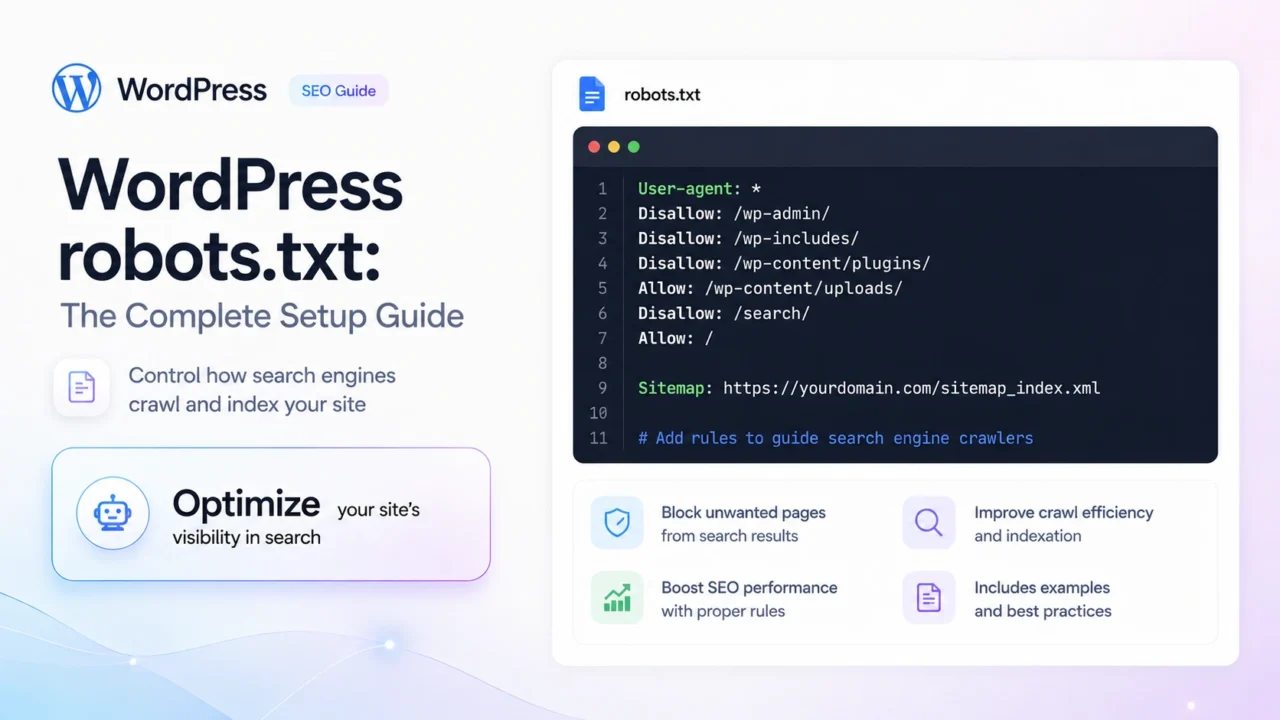
A correctly configured WordPress robots.txt should block crawlers from /wp-admin/ (except admin-ajax.php which must stay crawlable), allow access to everything else, and include your sitemap URL. Here is the safe default for most WordPress sites:
User-agent: *
Disallow: /wp-admin/
Allow: /wp-admin/admin-ajax.php
Sitemap: https://yourdomain.com/sitemap_index.xml
WordPress robots.txt — Everything You Need to Know
- Default WordPress robots.txt is virtual — it doesn’t exist as a physical file unless you create one. WordPress generates it dynamically via the Settings → Reading panel.
- The only thing you must block is
/wp-admin/— but always allow/wp-admin/admin-ajax.phpor dynamic content breaks. - Never block
/wp-content/— CSS, JS, and images live there. Blocking it causes Googlebot to render your pages without styles, hurting CLS and layout scores. - Always include your sitemap URL at the bottom — it’s optional per spec but standard practice that helps all crawlers find your content faster.
- robots.txt vs noindex — robots.txt blocks crawling; noindex blocks indexing. A page blocked in robots.txt can still appear in search results if linked from elsewhere. Use noindex to actually remove pages from the index.
- Test in GSC — always verify your robots.txt in Google Search Console → Settings → robots.txt before assuming it works correctly.
Your WordPress robots.txt file is small — rarely more than a dozen lines — but it’s one of the first things every search crawler reads when it visits your site. Get it wrong and you can accidentally block Googlebot from crawling your CSS (destroying your Core Web Vitals scores), block legitimate crawlers from reaching your content, or leave admin URLs crawlable when they should be private.
This guide covers how WordPress generates its robots.txt, how to edit it correctly using four different methods, what each directive actually does, templates for five common site types, the most common mistakes and how to fix them, and how to test that your file is doing what you think it’s doing.
How It Works
How WordPress Generates Its robots.txt
WordPress does not create a physical robots.txt file on your server by default. Instead, it intercepts requests to yourdomain.com/robots.txt and generates the content dynamically via PHP, using the robots_txt filter hook. This means:
- If you look in your root directory via FTP or File Manager, you won’t find a
robots.txtfile unless you created one manually - If a physical
robots.txtfile exists in your root directory, WordPress serves that instead of its dynamic version — the physical file takes precedence - WordPress’s default dynamic robots.txt is minimal: it only disallows
/wp-admin/when the site is set to “Discourage search engines” in Settings → Reading, and outputs a bare-minimum file otherwise
Most SEO plugins — Yoast SEO, RankMath, All in One SEO — take over robots.txt generation and give you an interface to edit it from the WordPress admin. If you’re using any of these plugins, their interface is the right place to manage your robots.txt rather than editing a physical file directly.
If you have both a physical robots.txt in your root directory AND a robots.txt editor active in your SEO plugin, the physical file wins. This is the source of a common problem: someone edits the robots.txt in Yoast, saves it, but nothing changes because a physical file is overriding it. Check via FTP first — if a physical file exists, either edit that directly or delete it and let your SEO plugin take over.
How to Edit
Four Ways to Edit Your WordPress robots.txt
/robots.txt in your WordPress root. Use cPanel File Manager, Dreamhost’s File Manager, or an FTP client. Upload a plain text file named exactly robots.txt to the same directory as wp-config.php. This physical file overrides WordPress and plugin virtual files.
Disallow: / directive. Useful only for staging sites you want to block entirely. For anything more specific, use a plugin or FTP.
If you have Yoast or RankMath active, use their built-in robots.txt editor — it handles the interaction with WordPress’s dynamic generation correctly. If you don’t use an SEO plugin, create a physical file via FTP. Avoid using the Settings → Reading toggle for anything other than completely blocking a staging site.
Understanding the Directives
What Each robots.txt Directive Actually Does
Before copying any template, understand what you’re pasting. There are four directives you’ll use in a WordPress robots.txt:
| Directive | What It Does | Example |
|---|---|---|
User-agent: |
Specifies which crawler the rules below apply to. * means all crawlers. You can target specific bots by name. |
User-agent: Googlebot |
Disallow: |
Tells the crawler not to crawl this URL or path. An empty Disallow: means allow everything (confusingly). |
Disallow: /wp-admin/ |
Allow: |
Explicitly permits crawling of a URL or path — used to create exceptions within a blocked directory. | Allow: /wp-admin/admin-ajax.php |
Sitemap: |
Tells any crawler the location of your XML sitemap. Not part of the original robots.txt spec but universally supported. Can appear multiple times for multiple sitemaps. | Sitemap: https://example.com/sitemap.xml |
A critical rule about specificity: when Allow and Disallow rules conflict, Google uses the most specific rule. If you disallow /wp-admin/ but allow /wp-admin/admin-ajax.php, the allow rule wins for that specific file because it is more specific. This is how the standard WordPress robots.txt pattern works correctly.
Blocking a URL in robots.txt prevents Google from crawling that URL — but does not prevent it from being indexed. If a blocked page has external links pointing to it, Google can still add it to the index (showing a result with no description, since it couldn’t crawl the content). To remove a page from search results, use a noindex meta tag or HTTP header — not robots.txt.
Templates
robots.txt Templates for Five WordPress Site Types
Copy the template for your site type, replace yourdomain.com with your actual domain, and verify the sitemap URL matches what your SEO plugin generates (check it at yourdomain.com/sitemap_index.xml).
Standard Blog / Content Site
Most WordPress sites
User-agent: *
Disallow: /wp-admin/
Allow: /wp-admin/admin-ajax.php
Disallow: /search
Disallow: /?s=
Disallow: /wp-login.php
Disallow: /feed/
Disallow: /xmlrpc.php
Disallow: /trackback/
Sitemap: https://yourdomain.com/sitemap_index.xml
User-agent: *
Disallow: /wp-admin/
Allow: /wp-admin/admin-ajax.php
Disallow: /cart/
Disallow: /checkout/
Disallow: /my-account/
Disallow: /wc-api/
Disallow: /?add-to-cart=
Disallow: /search
Disallow: /?s=
Disallow: /wp-login.php
Disallow: /xmlrpc.php
# Allow product and category pages explicitly
Allow: /shop/
Allow: /product/
Allow: /product-category/
Sitemap: https://yourdomain.com/sitemap_index.xml
Membership / Login-Required Site
Blocks all gated content from crawlers
User-agent: *
Disallow: /wp-admin/
Allow: /wp-admin/admin-ajax.php
Disallow: /members/
Disallow: /dashboard/
Disallow: /account/
Disallow: /login/
Disallow: /register/
Disallow: /wp-login.php
Disallow: /xmlrpc.php
Disallow: /search
Disallow: /?s=
# Public pages remain crawlable
Allow: /
Sitemap: https://yourdomain.com/sitemap_index.xml
Portfolio / Agency Site
Minimal blocking — maximise crawlability
User-agent: *
Disallow: /wp-admin/
Allow: /wp-admin/admin-ajax.php
Disallow: /wp-login.php
Disallow: /xmlrpc.php
Sitemap: https://yourdomain.com/sitemap_index.xml
Staging / Development Site
Blocks all crawlers completely — use on non-production only
# Remove this entirely before going live
# Also add HTTP auth or IP restriction as a belt-and-suspenders measure
User-agent: *
Disallow: /
Generate Your robots.txt in 60 Seconds
The free TopTut robots.txt Generator builds a correctly formatted file for your site type — blog, WooCommerce, membership, or portfolio — with WordPress-specific presets and a one-click download.
Common Mistakes
The 7 Most Common WordPress robots.txt Mistakes
| Mistake | What Goes Wrong | The Fix |
|---|---|---|
| Blocking /wp-content/ | Stops Googlebot from loading CSS, JS, and images. Pages render without styles in Google’s crawler, destroying CLS scores and potentially causing ranking drops. | Remove the Disallow entirely. wp-content is public by design. There is nothing in wp-content you need to protect from crawlers. |
| Forgetting admin-ajax.php | Disallowing /wp-admin/ without explicitly allowing admin-ajax.php breaks dynamic AJAX-powered content — WooCommerce add-to-cart, live search, infinite scroll, contact forms. |
Always add: Allow: /wp-admin/admin-ajax.php immediately after your Disallow: /wp-admin/ line. |
| Blocking /wp-includes/ | Same problem as blocking wp-content. Core WordPress JavaScript and CSS live here. Blocking it prevents Google from rendering pages correctly. | Remove any Disallow for /wp-includes/. This directory should never be blocked. |
| Using robots.txt to remove pages from search | Blocking a URL in robots.txt does not remove it from Google’s index. Pages can still appear in search results if linked from elsewhere — Google just can’t see the content. | Use noindex meta tag on the page itself, or submit a URL removal request via GSC, to actually remove a page from search results. |
| Wrong sitemap URL | Pointing to a sitemap that doesn’t exist, or using the wrong URL format. Yoast generates /sitemap_index.xml; RankMath generates /sitemap_index.xml; a manual sitemap might be at /sitemap.xml. |
Visit your sitemap URL in a browser first to confirm it exists, then copy the exact URL into your robots.txt. |
| Blocking search result pages ineffectively | Blocking /?s= but not /search (or vice versa) leaves one search URL pattern crawlable. WordPress uses both patterns in different configurations. |
Block both patterns: Disallow: /search and Disallow: /?s= to cover all WordPress search URL formats. |
| Physical file overriding plugin settings | Editing robots.txt in Yoast or RankMath but changes have no effect because a physical robots.txt file in the root directory takes precedence. |
Check your root directory via FTP. If a physical file exists, either edit it directly or delete it and let your SEO plugin manage the virtual version. |
Blocking Specific Crawlers
How to Block Specific Crawlers (AI Scrapers, Bad Bots)
As of 2025–2026, blocking AI training crawlers has become a common robots.txt request. The major ones to know:
# Add below your main User-agent: * block
User-agent: GPTBot
Disallow: /
User-agent: ChatGPT-User
Disallow: /
User-agent: CCBot
Disallow: /
User-agent: anthropic-ai
Disallow: /
User-agent: Google-Extended
Disallow: /
User-agent: Amazonbot
Disallow: /
Reputable AI companies like OpenAI, Anthropic, and Google respect robots.txt for their training crawlers. Disreputable scrapers do not — they ignore robots.txt entirely. Blocking AI crawlers via robots.txt is a signal, not a lock. For stronger protection against unwanted scraping, consider rate limiting at the server or Cloudflare level.
You can also block specific bots that are generating unnecessary crawl load without being useful search crawlers. Common examples: AhrefsBot, SemrushBot, MJ12bot. Blocking these reduces your server load but has no effect on your Google rankings since they are not Google’s crawlers.
Testing Your robots.txt
How to Test Your robots.txt in Google Search Console
Never assume your robots.txt is working correctly — always test it. Google Search Console has a built-in robots.txt tester that shows exactly how Googlebot reads your file and lets you test specific URLs against your rules.
How to access it: Google Search Console → Settings (gear icon, bottom left) → robots.txt. The panel shows your live robots.txt exactly as Google sees it, including the last time it was crawled.
How to test a specific URL: In the same panel, enter any URL path (e.g. /wp-admin/) in the test field and click Test. GSC shows whether that URL is allowed or blocked, and which specific rule is responsible. This is the fastest way to catch conflicts between Allow and Disallow rules.
Three things to verify in GSC after any robots.txt change:
/wp-admin/shows as Blocked/wp-admin/admin-ajax.phpshows as Allowed/(your homepage) shows as Allowed
Visit https://yourdomain.com/robots.txt directly in your browser. You should see your plain text file rendered on screen. If you see a 404 error, WordPress isn’t serving the virtual file — check Settings → Reading and confirm “Discourage search engines” is unchecked. If you see a blank page, check for an empty physical file in your root directory.
robots.txt vs noindex
When to Use robots.txt vs noindex
This is the most misunderstood aspect of robots.txt and it’s worth being precise about.
| Goal | Use robots.txt? | Use noindex? | Notes |
|---|---|---|---|
| Stop Google crawling a page | Yes | No | robots.txt prevents the crawl request entirely — saves crawl budget on large sites |
| Remove a page from search results | No | Yes | noindex meta tag or X-Robots-Tag header is the correct tool |
| Block admin and login pages | Yes | Yes | Use both: robots.txt to stop crawling, noindex on the page itself as a belt-and-suspenders measure |
| Block a staging site entirely | Yes | Optional | Also add HTTP authentication — robots.txt alone is not reliable protection |
| Block WooCommerce cart/checkout | Yes | Yes | WooCommerce adds noindex to these by default — robots.txt adds another layer |
| Block duplicate content (faceted navigation) | Sometimes | Usually | Canonicals or noindex are generally preferred — robots.txt blocks prevent Google seeing the content at all which can cause other issues |
FAQ
Frequently Asked Questions
yourdomain.com/robots.txt is requested. You can see the current file by visiting that URL in your browser. If you use Yoast SEO, you can edit it at Yoast → Tools → File Editor → robots.txt tab. If you use RankMath, go to RankMath → General Settings → Edit robots.txt. To create a physical file, upload a text file named robots.txt to your WordPress root directory (same folder as wp-config.php) via FTP or your host’s File Manager./wp-content/ in your WordPress robots.txt. Your theme’s CSS, JavaScript files, and uploaded images all live in /wp-content/. Blocking it prevents Googlebot from loading these resources, which means Google renders your pages without styles. This causes poor Core Web Vitals scores (particularly CLS) and can negatively affect your rankings. The wp-content directory has nothing that needs to be hidden from crawlers.Sitemap: directive at the bottom of your robots.txt file with the full URL to your sitemap. For Yoast SEO, the sitemap URL is typically https://yourdomain.com/sitemap_index.xml. For RankMath it is the same. Verify it exists by visiting that URL before adding it. In Yoast’s robots.txt editor, add: Sitemap: https://yourdomain.com/sitemap_index.xml as a new line at the end of the file.yourdomain.com/robots.txt in your browser to see the current file. For a proper Googlebot simulation, use Google Search Console → Settings → robots.txt, which shows exactly how Google reads your file and lets you test any specific URL path against your rules. Always test that /wp-admin/ is blocked, /wp-admin/admin-ajax.php is allowed, and your homepage / is allowed after making any changes.
[
{
“@context”: “https://schema.org”,
“@type”: “Article”,
“headline”: “WordPress robots.txt: The Complete Setup Guide (With Templates for Every Site Type)”,
“description”: “Complete guide to WordPress robots.txt covering how WordPress generates its robots.txt, four ways to edit it, what each directive does, five ready-to-use templates for different site types, the 7 most common mistakes, and how to test your file in Google Search Console.”,
“image”: “https://www.toptut.com/wp-content/uploads/wordpress-robots-txt-complete-guide-2026.jpg”,
“datePublished”: “2026-03-26”,
“dateModified”: “2026-03-26”,
“author”: {
“@type”: “Person”,
“name”: “Liza Kliko”,
“url”: “https://www.toptut.com/author/liza-kliko/”
},
“publisher”: {
“@type”: “Organization”,
“name”: “TopTut”,
“url”: “https://www.toptut.com”,
“logo”: {
“@type”: “ImageObject”,
“url”: “https://www.toptut.com/wp-content/uploads/toptut-logo.png”
}
},
“mainEntityOfPage”: {
“@type”: “WebPage”,
“@id”: “https://www.toptut.com/wordpress-robots-txt-complete-guide/”
},
“keywords”: [
“wordpress robots txt”,
“robots.txt wordpress template”,
“disallow wp-admin robots.txt”,
“wordpress robots txt generator”,
“edit robots.txt wordpress”,
“wordpress sitemap robots txt”,
“block crawlers wordpress”,
“yoast robots txt”,
“rankmath robots txt”,
“wordpress seo robots txt”
],
“articleSection”: “WordPress SEO”,
“wordCount”: “2900”
},
{
“@context”: “https://schema.org”,
“@type”: “FAQPage”,
“mainEntity”: [
{
“@type”: “Question”,
“name”: “Where is the robots.txt file in WordPress?”,
“acceptedAnswer”: {
“@type”: “Answer”,
“text”: “By default WordPress generates robots.txt dynamically — there is no physical file. Visit yourdomain.com/robots.txt to see it. Edit it via Yoast → Tools → File Editor → robots.txt, RankMath → General Settings → Edit robots.txt, or by uploading a physical robots.txt file to your WordPress root directory via FTP.”
}
},
{
“@type”: “Question”,
“name”: “Should I disallow wp-content in robots.txt?”,
“acceptedAnswer”: {
“@type”: “Answer”,
“text”: “No. Never disallow /wp-content/ in WordPress robots.txt. Your CSS, JavaScript, and images live there. Blocking it prevents Googlebot from loading these resources, causing poor Core Web Vitals scores and potentially harming rankings.”
}
},
{
“@type”: “Question”,
“name”: “How do I add my sitemap to robots.txt in WordPress?”,
“acceptedAnswer”: {
“@type”: “Answer”,
“text”: “Add a Sitemap: directive at the bottom of your robots.txt with your full sitemap URL. For Yoast or RankMath, this is typically: Sitemap: https://yourdomain.com/sitemap_index.xml. Verify the sitemap URL exists in your browser before adding it.”
}
},
{
“@type”: “Question”,
“name”: “What should a WordPress robots.txt contain?”,
“acceptedAnswer”: {
“@type”: “Answer”,
“text”: “A WordPress robots.txt should at minimum contain: User-agent: * / Disallow: /wp-admin/ / Allow: /wp-admin/admin-ajax.php / and a Sitemap: line pointing to your XML sitemap. Most sites also add Disallow rules for /wp-login.php, /xmlrpc.php, /search, and /?s= to prevent crawling of non-content URLs.”
}
},
{
“@type”: “Question”,
“name”: “How do I test my WordPress robots.txt?”,
“acceptedAnswer”: {
“@type”: “Answer”,
“text”: “Visit yourdomain.com/robots.txt in your browser to see the current file. Use Google Search Console → Settings → robots.txt for a proper Googlebot simulation that lets you test specific URL paths. Always verify /wp-admin/ is blocked, /wp-admin/admin-ajax.php is allowed, and / is allowed.”
}
},
{
“@type”: “Question”,
“name”: “Does robots.txt affect Google rankings?”,
“acceptedAnswer”: {
“@type”: “Answer”,
“text”: “Indirectly yes. Blocking CSS and JS files causes rendering problems that hurt Core Web Vitals. Blocking important pages removes them from the index. A correctly configured robots.txt — blocking only admin and duplicate content URLs — has no negative ranking effect. Incorrectly blocking wp-content or wp-includes actively hurts rankings.”
}
}
]
},
{
“@context”: “https://schema.org”,
“@type”: “BreadcrumbList”,
“itemListElement”: [
{
“@type”: “ListItem”,
“position”: 1,
“name”: “Home”,
“item”: “https://www.toptut.com/”
},
{
“@type”: “ListItem”,
“position”: 2,
“name”: “WordPress SEO”,
“item”: “https://www.toptut.com/category/wordpress/”
},
{
“@type”: “ListItem”,
“position”: 3,
“name”: “WordPress robots.txt: The Complete Setup Guide”,
“item”: “https://www.toptut.com/wordpress-robots-txt-complete-guide/”
}
]
}
]
WordPress robots.txt mistakes that block rankings
The biggest WordPress robots.txt mistake is blocking important content, CSS, JavaScript, images, or sitemap access while trying to clean up crawl paths. For most WordPress sites, robots.txt should point crawlers to the sitemap, keep admin paths out of normal crawling, and avoid blocking resources Google needs to render the page.
- Do not block /wp-content/uploads/ if images matter for search.
- Do not block CSS or JavaScript required for rendering.
- Add the XML sitemap URL.
- Use noindex for thin pages instead of trying to hide them with robots.txt.
Where is WordPress robots.txt?
WordPress often serves a virtual robots.txt file at /robots.txt. SEO plugins or server files can override it.
Should I block wp-admin in robots.txt?
Blocking /wp-admin/ is common, but allow admin-ajax.php because many themes and plugins need it.
Does robots.txt remove pages from Google?
No. Robots.txt controls crawling, not guaranteed removal. Use noindex or URL removal tools when removal is the real goal.