Free Adobe Alternatives: 20 Tools That Replace Photoshop, Illustrator & Premiere (2026)

TL;DR — Free Adobe Alternatives 2026
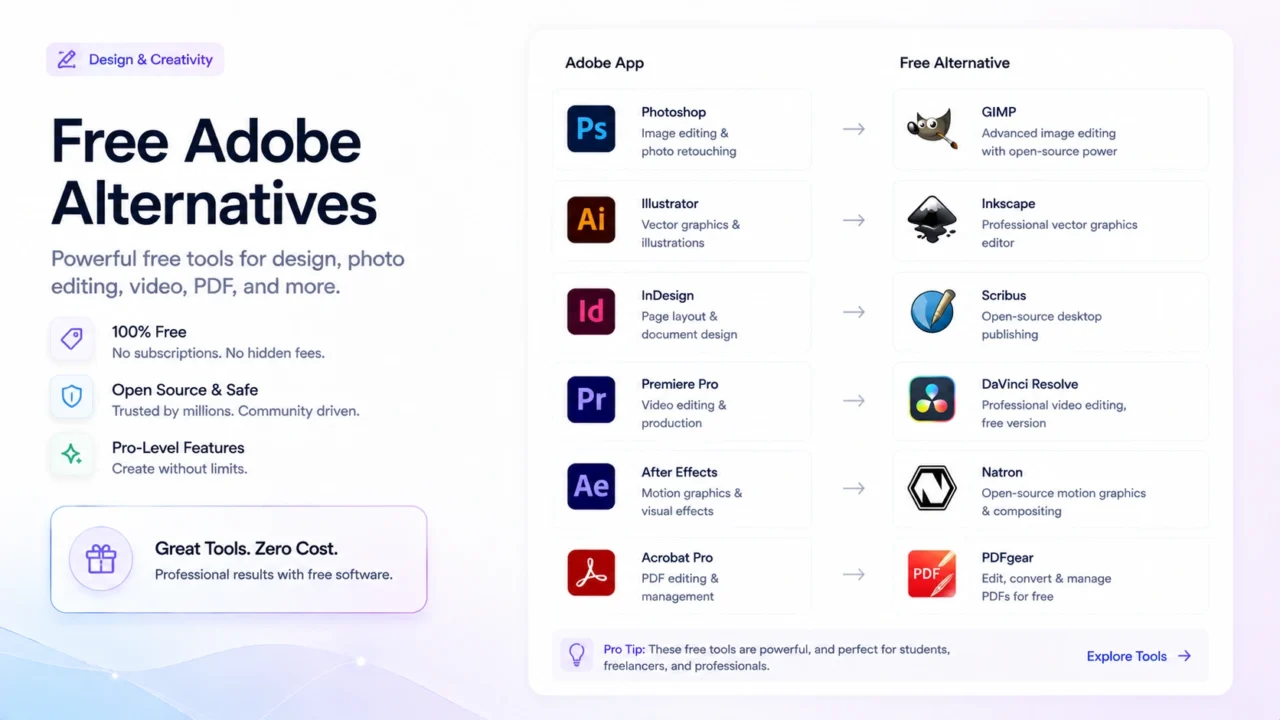
- Photoshop: Photopea (browser, easiest switch), GIMP (most powerful, steepest curve), Krita (digital painting). For RAW: Darktable or RawTherapee instead of Lightroom.
- Illustrator: Inkscape (open source, full-featured), Linearity Curve (Mac/iPad only, polished), Gravit Designer (browser-based).
- Premiere Pro: DaVinci Resolve — not a compromise, genuinely better in several areas. Kdenlive and Shotcut for simpler needs.
- After Effects: DaVinci Resolve Fusion (included with Resolve), Natron, or Blender’s compositor for node-based compositing.
- InDesign: Scribus (open source, crashes occasionally), Affinity Publisher (one-time $69, not free but worth noting).
- The tools worth switching to immediately: DaVinci Resolve, Photopea, Inkscape. The ones that take real adjustment time: GIMP, Scribus, Natron.
⚠ What These Tools Don’t Replace
If your workflow involves handing files back and forth with clients or agencies who are on Adobe, format compatibility will cause friction. .ai, .psd, and .prproj files can be opened by some of these tools but not always round-tripped cleanly. If you’re working inside an all-Adobe studio pipeline, staying on Adobe is probably the practical choice regardless of cost. These alternatives work best when you control your own file formats end to end.
Adobe Creative Cloud costs $59.99/month for the full suite. For a freelancer or small team using it seriously, that’s a real line item — and over the past two years I’ve been methodically replacing most of it. Not out of principle, but because several of the free alternatives have reached a quality level where the switching cost is worth paying once and then it’s done.
The honest version of this post: some of these tools are genuine replacements. DaVinci Resolve is not a compromise — it’s what professional colorists and editors use on Hollywood productions, and the free version has no watermarks or meaningful feature limits. Photopea opens your PSDs in a browser tab and handles layer effects, smart objects, and adjustment layers better than I expected. Others on this list — I’m looking at you, GIMP — are usable but require real adjustment if you’re coming from Photoshop’s workflow.
This post covers 20 tools across five Adobe product categories, with my honest experience using each, what the real switching cost looks like, and direct download links.
Photoshop Alternatives
1. Photopea — Best for PSD Compatibility
Download: photopea.com (browser-based, no install required)
Photopea is the tool that surprised me most on this list. It runs in a browser tab, it opens PSD files including smart objects and adjustment layers, and the interface is close enough to Photoshop that I was productive on my first session without watching a tutorial. It also opens XD, Sketch, Figma, and Illustrator files, which makes it genuinely useful as a cross-format viewer even if you’re not replacing Photoshop.
The free version displays ads in the right panel. A $13/month subscription removes them. For occasional use, the free version is fine. For daily use, the ads are annoying enough that the subscription cost is worth it — which is still a fraction of Adobe’s pricing.
Where it falls short: performance on very large files (documents over 500MB with many layers) gets sluggish in the browser. For files that size, GIMP handles them better on desktop.
2. GIMP — Most Powerful Free Desktop Option
Download: gimp.org (Windows, macOS, Linux)
GIMP has been in development since 1996 — thirty years of open-source contributions that have produced something genuinely capable and genuinely difficult to love. The feature set is real: layers, layer modes, masks, channels, paths, filters, batch processing via Script-Fu, plugin support. It handles what Photoshop handles. The difference is how.
GIMP took me three weeks to stop fighting. The interface is organized around its own logic, which is different from Photoshop’s logic, and switching between them in the same day is genuinely disorienting. Once I committed to using GIMP exclusively for a project, it got easier. The problem was the context switching, not the tool itself.
Specific friction points coming from Photoshop: applying a gradient overlay to a layer requires going through Layer → Layer Style, which exists as a Script-Fu workaround rather than a native panel. Non-destructive adjustment layers work differently — GIMP has them but they’re implemented via Colors menu commands rather than the Layers panel. The Transform tools work well but the options panel updates require you to confirm each transformation before moving to the next, which breaks Photoshop muscle memory significantly.
Enable single-window mode immediately: Window → Single-Window Mode. The default multi-window layout is unusable on anything less than a two-monitor setup.
3. Krita — For Digital Painting and Illustration
Download: krita.org (Windows, macOS, Linux — also on Steam for $14.99 to support development)
Krita isn’t trying to replace Photoshop’s photo editing workflow — it’s built for digital painting, concept art, and illustration. If you’re using Photoshop primarily as a painting tool (brushes, digital illustration, texture work), Krita’s brush engine is genuinely better than Photoshop’s in several respects. The stabilizer, the brush customization depth, and the pop-up palette are features illustrators specifically ask Photoshop for and don’t get.
For photo editing, retouching, or compositing work, use GIMP or Photopea instead. Krita is the right tool for a specific subset of what Photoshop does, not a general replacement.
4. Darktable — Lightroom Replacement for RAW Processing
Download: darktable.org (Windows, macOS, Linux)
Darktable is a non-destructive RAW photo processor with a library management system — the same functional category as Lightroom. The processing pipeline is powerful, the catalogue system works, and the parametric mask system for local adjustments is more sophisticated than Lightroom’s equivalent in some respects. The learning curve is steeper than Lightroom because the module-based interface assumes you understand what each processing stage does.
If you shoot RAW and currently pay for Adobe Photography Plan ($19.99/month) primarily to get Lightroom, Darktable plus Photopea covers the same workflow for free.
5. RawTherapee — For RAW Processing Without the Library System
Download: rawtherapee.com (Windows, macOS, Linux)
RawTherapee handles RAW processing with arguably the most accurate demosaicing algorithms of any free tool. It doesn’t have a library/catalogue system — you navigate files via the browser panel. If you manage your photos through a separate tool (or a folder structure) and just want excellent RAW processing without a catalogue, RawTherapee’s output quality is hard to beat. For photographers who want catalogue management, Darktable is the better choice.
6. Pixlr E — For Quick Browser-Based Edits
Download: pixlr.com/e (browser-based)
Pixlr E is simpler than Photopea but faster for quick edits — cropping, resizing, basic adjustments, text overlays. The free tier includes ads and limits some AI-powered tools, but for simple image tasks it requires no installation and no account. I use it for one-off quick edits where opening GIMP would be overkill. For anything involving layers or PSD files, Photopea is the better browser option.
Illustrator Alternatives
7. Inkscape — The Open-Source Standard for Vector Editing
Download: inkscape.org (Windows, macOS, Linux)
Inkscape is the closest thing to a genuine Illustrator replacement that’s fully free and open source. It handles SVG natively, supports paths, boolean operations, gradients, pattern fills, text on path, and most of what Illustrator’s core vector workflow involves. The node editing tools are particularly good — working with bezier curves in Inkscape is comfortable enough that I’ve stopped missing Illustrator’s pen tool after about two weeks of use.
Where it diverges from Illustrator: the typography tools are weaker, especially for multi-column text layouts and precise typographic control. Exporting to formats other than SVG and PDF occasionally requires workarounds. The file format is SVG with Inkscape-specific extensions, which opens in Illustrator but sometimes loses fidelity on complex effects.
Illustrator users coming to Inkscape should expect about a week before the keyboard shortcuts and tool behavior feel natural. The Illustrator keyboard shortcut preset (Edit → Preferences → Interface → Keyboard Shortcuts → Choose from Illustrator) helps significantly with the transition.
8. Linearity Curve (formerly Vectornator) — Best for Mac and iPad
Download: linearity.io/curve (macOS and iPadOS only, free)
If you’re on a Mac or iPad, Linearity Curve is the most polished free vector tool available. The interface feels native in a way that Inkscape doesn’t — clean, fast, well-designed. It exports to SVG, PDF, and PNG cleanly and imports AI files reasonably well. The Apple Pencil support on iPad is genuinely excellent for illustration work.
The limitation is the platform restriction. Windows users can’t use it. For cross-platform teams or Windows-primary setups, Inkscape is still the answer.
9. Gravit Designer — Browser-Based Vector With a Desktop App
Download: designer.io (browser, Windows, macOS, Linux, ChromeOS)
Gravit Designer (now part of Corel’s portfolio) offers a free tier that covers most basic vector work — path editing, text, shapes, exports to SVG and PDF. The Pro version adds features like offline mode and advanced grid tools. The browser-based version is the most cross-platform option in this category and works on Chromebooks, which neither Inkscape nor Linearity Curve does.
10. Boxy SVG — For SVG-Focused Work
Download: boxy-svg.com (browser and Chrome app, free for basic use)
Boxy SVG is more narrowly focused than the others — it’s primarily a clean SVG editor rather than a full Illustrator replacement. For web developers who need to edit SVG files directly, adjust paths, or create simple vector graphics for the web, it’s faster to reach for than Inkscape. For print work or complex illustration, use Inkscape instead.
Premiere Pro Alternatives
11. DaVinci Resolve — The One You Should Actually Switch To
Download: blackmagicdesign.com/products/davinciresolve (Windows, macOS, Linux — free version has no watermarks)
DaVinci Resolve is used on the majority of Hollywood feature films for color grading. The free version — not a trial, genuinely free and unrestricted for most workflows — includes a full NLE timeline editor, the Color page with professional grading tools, Fusion for compositing, and Fairlight for audio post. The paid Studio version ($295 one-time) adds AI-powered tools and noise reduction, but the free version is complete enough that most independent filmmakers and content creators never need to upgrade.
Coming from Premiere Pro, the adjustment period was about a week before I felt productive. The concepts are the same (timeline, tracks, clips, effects), but the organization into separate pages (Edit, Cut, Color, Fusion, Fairlight, Deliver) takes some getting used to. The Cut page — a simplified editing environment designed for speed — is genuinely faster than Premiere’s equivalent for rough cuts once you learn its magnetic timeline behavior.
Import your Premiere Pro projects via File → Import → XML, exported from Premiere as Final Cut Pro XML. The translation isn’t perfect — some effects won’t carry over — but the timeline structure, cuts, and most color corrections import cleanly enough to use as a starting point rather than rebuilding from scratch.
Where Resolve Beats Premiere
- Color grading tools — significantly more advanced
- Fusion compositing built in (no separate AE subscription needed)
- Fairlight audio — more capable than Premiere’s audio tools
- One-time cost (Studio) vs ongoing subscription
- Performance on Apple Silicon — noticeably faster
Where Premiere Still Has an Edge
- Dynamic Link with After Effects (no equivalent in Resolve)
- Deeper Creative Cloud integration (Fonts, Libraries, Stock)
- Motion graphics templates ecosystem (MOGRT files)
- Collaboration features for large teams (Productions)
- More intuitive for basic edits if you’re already in Adobe
12. Kdenlive — Best Open-Source NLE for Complex Timelines
Download: kdenlive.org (Windows, macOS, Linux)
Kdenlive is the open-source NLE I’d recommend for editors who find DaVinci Resolve’s page-based interface overwhelming. The layout is more conventionally timeline-focused — one workspace, recognizable track structure, familiar effects panel. It handles multi-track editing, audio mixing, keyframe animation, and proxy workflows for high-resolution footage. The effects library is large enough for most independent projects.
The stability has improved significantly in recent versions. On macOS it still occasionally crashes on export — saving frequently is non-optional. On Linux it’s the most stable NLE available for free, full stop.
13. Shotcut — Cross-Platform With No Installation Required
Download: shotcut.org (Windows, macOS, Linux — also available as portable app)
Shotcut is the easiest entry point for someone who has never used a video editor before. The interface is flat and the feature set is smaller than Kdenlive or Resolve, but it handles the common tasks — trimming, cutting, transitions, text, basic color correction, and export — without requiring a learning curve. The portable version (no installer needed) makes it useful for situations where you can’t install software.
14. OpenShot — Simplest Option for Beginners
Download: openshot.org (Windows, macOS, Linux)
OpenShot’s strength is that it requires almost no learning to start making cuts. Drag footage to the timeline, trim, add a transition, export. For basic social media video editing or simple project compilations, it works well. For anything more complex — color grading, audio mixing, multi-camera editing — you’ll hit its limits within an hour and want to move to Kdenlive or Resolve.
15. CapCut (Desktop) — For Short-Form Social Content
Download: capcut.com (Windows, macOS — also mobile)
CapCut is free and optimized for the kind of editing that goes into TikTok, Instagram Reels, and YouTube Shorts — quick cuts, text animations, auto-captions, trending transitions. It won’t replace Premiere for long-form or complex productions, but for content creators focused on short-form video, it’s faster and more purpose-built than any other free tool on this list. Note: CapCut is developed by ByteDance, which carries the same data privacy considerations as TikTok.
After Effects Alternatives
16. DaVinci Resolve Fusion — Node-Based Compositing Included With Resolve
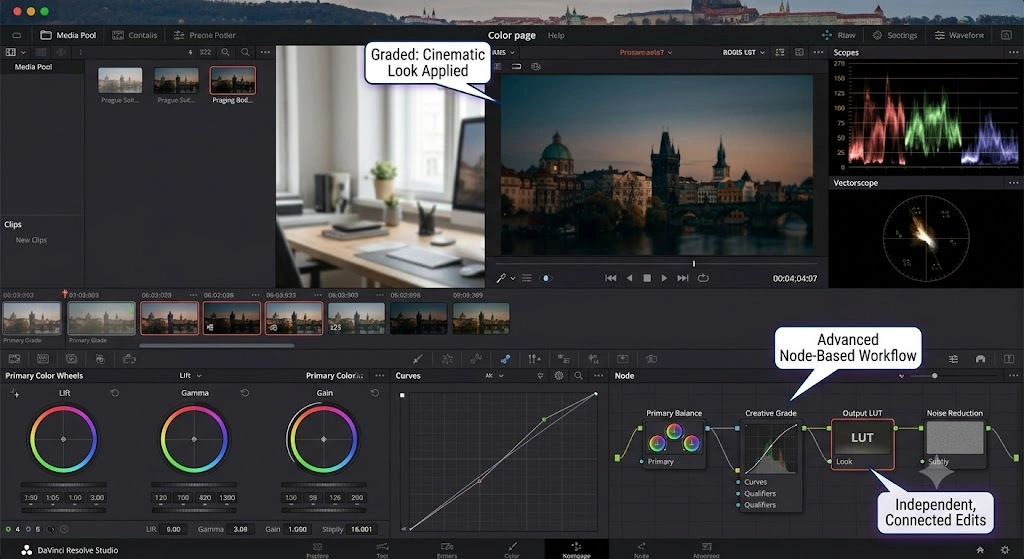
Fusion is DaVinci Resolve’s built-in compositing environment — accessible via the Fusion page without installing anything additional. It uses a node-based workflow rather than After Effects’ layer-based timeline, which requires a different mental model but is arguably more powerful for complex composites once you understand it. It handles motion graphics, visual effects, 3D particle systems, and keying.
The honest adjustment note: Fusion is not a straightforward After Effects replacement for someone with years of AE muscle memory. The node graph takes several projects to feel natural. For simple motion graphics work — animated titles, lower thirds, basic transitions — After Effects templates are faster to work with on the AE side. For complex VFX compositing, Fusion’s node system is more capable once you’ve learned it.
17. Natron — Open-Source Compositing for VFX Work
Download: natron.fr (Windows, macOS, Linux)
Natron is modeled closely on Nuke — the industry-standard VFX compositing tool — which means it uses the same node-based paradigm and supports OpenFX plugins. For visual effects compositing work (rotoscoping, keying, tracking, 3D compositing), it’s more purpose-built than Fusion for that specific workflow. The interface is less polished than Fusion’s and the documentation is sparse, but the tool itself is serious and used in real production pipelines.
18. Blender (Compositor) — When You’re Already Using Blender
Download: blender.org (Windows, macOS, Linux)
Blender’s built-in compositor is a node-based system that handles 2D and 3D compositing. If you’re already using Blender for 3D work, the compositor is the natural place to finish renders — adding glare, fog, color grading, and combining render passes. As a standalone After Effects replacement for non-3D work, the overhead of Blender’s interface isn’t worth it. As part of an existing Blender workflow, it’s excellent and avoids exporting to a separate compositing application.
InDesign Alternatives
19. Scribus — Open-Source Desktop Publishing
Download: scribus.net (Windows, macOS, Linux)
Scribus is the only serious open-source InDesign alternative, and the gap between it and InDesign is wider than the gaps in any other category on this list. Text frame handling, master pages, and styles all work. PDF export — including print-ready PDF/X formats with bleed and crop marks — is genuinely good. For producing a simple brochure, newsletter, or one-off document layout, Scribus works.
My honest experience with it: it crashed twice during a 24-page document layout — once losing about 40 minutes of work because Scribus has no auto-save. Save manually and often. The second crash was on export, which is particularly frustrating when you’re at the end of a session. When it works, the output is clean. The instability is real and worth knowing about before committing a deadline-sensitive project to it.
Set up auto-backup via File → Preferences → Document → Auto Save. It won’t save continuously but will create backup copies at a set interval, which limits how much you can lose in a crash.
20. Affinity Publisher 2 — One-Time Fee, Not Free, But Worth Listing
Download: affinity.serif.com/publisher ($69.99 one-time, Windows and macOS)
Affinity Publisher is not free, so it technically stretches the brief — but at $69.99 as a one-time purchase with no subscription, it belongs in this conversation. It’s the most usable InDesign alternative available. The StudioLink feature lets you switch between Publisher (layout), Photo (photo editing), and Designer (vector illustration) within the same file without exporting, which covers the integrated workflow that makes InDesign + Photoshop + Illustrator together worth the Adobe subscription price.
If InDesign is the Adobe app you use most heavily, Affinity Publisher deserves a trial (30-day free trial available) before defaulting to Scribus.
Side-by-Side: All 20 Tools at a Glance
| Tool | Replaces | Platform | Switching Difficulty | Best For |
|---|---|---|---|---|
| Photopea | Photoshop | Browser | Low | PSD editing, quick composites, cross-format viewing |
| GIMP | Photoshop | Win/Mac/Linux | High | Full photo editing, batch processing, heavy retouching |
| Krita | Photoshop (painting) | Win/Mac/Linux | Low–Medium | Digital painting, illustration, concept art |
| Darktable | Lightroom | Win/Mac/Linux | Medium | RAW processing with library management |
| RawTherapee | Lightroom/Camera Raw | Win/Mac/Linux | Medium | RAW processing, highest output quality, no catalogue |
| Pixlr E | Photoshop (basic) | Browser | Low | Quick edits, resizing, simple adjustments |
| Inkscape | Illustrator | Win/Mac/Linux | Medium | Full vector editing, SVG-native, print and web |
| Linearity Curve | Illustrator | Mac/iPad only | Low | Polished vector editing on Apple hardware |
| Gravit Designer | Illustrator | Browser/Win/Mac/Linux | Low–Medium | Cross-platform vector, works on Chromebook |
| Boxy SVG | Illustrator (SVG only) | Browser/Chrome | Low | Web SVG editing, fast and lightweight |
| DaVinci Resolve | Premiere Pro + some AE | Win/Mac/Linux | Medium | Professional editing, color grading, compositing |
| Kdenlive | Premiere Pro | Win/Mac/Linux | Medium | Complex multi-track editing, open source |
| Shotcut | Premiere Pro (basic) | Win/Mac/Linux | Low | Mid-complexity editing, portable version available |
| OpenShot | Premiere Pro (basic) | Win/Mac/Linux | Very Low | Beginner editing, simple cuts and transitions |
| CapCut Desktop | Premiere Pro (short-form) | Win/Mac | Very Low | TikTok/Reels/Shorts, auto-captions, social content |
| DaVinci Resolve Fusion | After Effects | Win/Mac/Linux | High | Node-based compositing, VFX, motion graphics |
| Natron | After Effects / Nuke | Win/Mac/Linux | High | VFX compositing, rotoscoping, keying |
| Blender (Compositor) | After Effects | Win/Mac/Linux | High | Compositing within existing Blender 3D workflows |
| Scribus | InDesign | Win/Mac/Linux | Medium | Print layouts, newsletters, PDF production |
| Affinity Publisher 2 | InDesign | Win/Mac | Low–Medium | Professional layout, integrated with Affinity suite ($69) |
How to Actually Switch: The Practical Migration Order
Trying to replace all of Adobe at once is a reliable way to spend two frustrating weeks and go back to paying the subscription. The approach that works is sequential: replace the Adobe app you use least first, get comfortable with the replacement, then move to the next one.
The order I’d recommend based on switching difficulty and payoff:
Start with DaVinci Resolve if you use Premiere. It’s the most capable replacement and the one most people are surprised by — the expectation is that it’ll be a downgrade, and it usually isn’t. Week one is disorienting; week two is productive; by week four most people don’t want to go back.
Then switch your RAW processing from Lightroom to Darktable. This is a module-by-module learning curve rather than a workflow reinvention — the concepts (exposure, white balance, tone curve, HSL) are the same, the interface is different. Budget about three sessions before it feels natural.
Then Inkscape for Illustrator. The vector editing concepts transfer well. The learning curve comes from the interface and shortcuts, not from a fundamentally different paradigm. Enable the Inkscape → Illustrator keyboard shortcut mapping and most of your shortcut memory still works.
Leave Photoshop for last if you use it heavily. GIMP is the most complete replacement but has the highest adjustment cost. Photopea covers a large portion of typical Photoshop workflows in the browser and can serve as a bridge while you learn GIMP’s interface on lower-stakes projects.
ℹ If You Only Switch One Thing
Switch to DaVinci Resolve from Premiere Pro. The learning curve is real but it’s one week, not one month. The free version has no meaningful limits for most workflows. You keep your Premiere skills because the NLE concepts are the same. And you gain a color grading tool that’s better than anything in the Adobe suite for the same zero-dollar cost.
Everything else on this list is worth doing eventually if you want to reduce your Adobe dependency — but Resolve is the one that changes your relationship to the subscription the fastest.
FAQ
Can GIMP open Photoshop PSD files without losing layers?
Yes, with some limitations. GIMP opens PSD files and preserves layer structure, layer names, and basic layer modes. What it doesn’t fully support: Smart Objects (converted to rasterized layers), some adjustment layer types (handled approximately rather than identically), and complex layer effects that depend on Photoshop-specific rendering. For a 47-layer PSD I tested, GIMP opened everything correctly except two Smart Object layers that came in flattened. Photopea handled the same file with fewer conversion issues, including the Smart Objects.
Does DaVinci Resolve have a watermark on exports in the free version?
No. The free version of DaVinci Resolve exports clean video without watermarks. The distinction between free and Studio ($295 one-time) is features, not output restrictions. The main Studio-only features are: AI-powered noise reduction (DaVinci Neural Engine), some collaborative features for multiple editors on the same project, stereoscopic 3D tools, and a handful of additional effects. For solo editors and most small teams, the free version covers everything.
Is Inkscape good enough for logo design professionally?
Yes, with the understanding that the output is SVG rather than native AI files. Inkscape produces clean, production-ready vector graphics. Professional designers have been delivering logos in Inkscape for years. The question isn’t whether the tool is capable — it is — but whether your client or print vendor can work with SVG and PDF deliverables rather than AI files. Most can. If a client specifically requires an editable native Illustrator file, Inkscape’s SVG export can be opened in Illustrator but may require some cleanup of complex effects.
Can I import my Premiere Pro project into DaVinci Resolve?
Yes, via XML export. In Premiere Pro, go to File → Export → Final Cut Pro XML, then in Resolve use File → Import → Timeline and select the XML file. The timeline structure, cuts, and basic color corrections transfer cleanly. Effects that have no Resolve equivalent (certain Premiere-specific transitions and plugins) won’t transfer and you’ll see empty placeholder effects where they were. Audio levels and panning transfer correctly. Expect to spend 30–60 minutes cleaning up a complex Premiere project after import; simple cuts-only timelines often require almost no work.
What’s the best free alternative if I primarily use Adobe for social media graphics?
Canva, which isn’t on this list because it’s not really in the same category as the Adobe tools — it’s a template-based design tool rather than a creative suite. For social media graphics, presentations, and marketing materials, Canva’s free tier is faster and more appropriate than GIMP or Inkscape. If you’re using Photoshop or Illustrator primarily for social media output and find those tools more than you need, Canva is worth trying before investing time in learning GIMP. It won’t replace Photoshop for photo retouching or Illustrator for complex illustration, but for the social media use case specifically it’s the honest recommendation.
Are these tools safe to download? How do I avoid fake downloads?
Only download from the official sites linked in this post. GIMP, Inkscape, DaVinci Resolve, Kdenlive, and Blender all rank highly in search results, which means there are also fake download sites in those results that bundle malware. The official domains: gimp.org, inkscape.org, blackmagicdesign.com, kdenlive.org, blender.org. For the browser-based tools (Photopea, Pixlr, Gravit), the URL bar showing the correct domain is your verification — there’s nothing to install.