<!– ============================================================
POST TITLE: Free WordPress Health Check: Instantly Audit Your Site's
PHP, Memory &
Plugins (No Login Required)
SLUG: /wordpress-health-check-tool/
PRIMARY KEYWORD: wordpress health check tool
AUTHOR: Liza Kliko
LAST TESTED: WordPress 6.7 · March 2026
============================================================ –>
📌 Direct Answer: WordPress Health Check
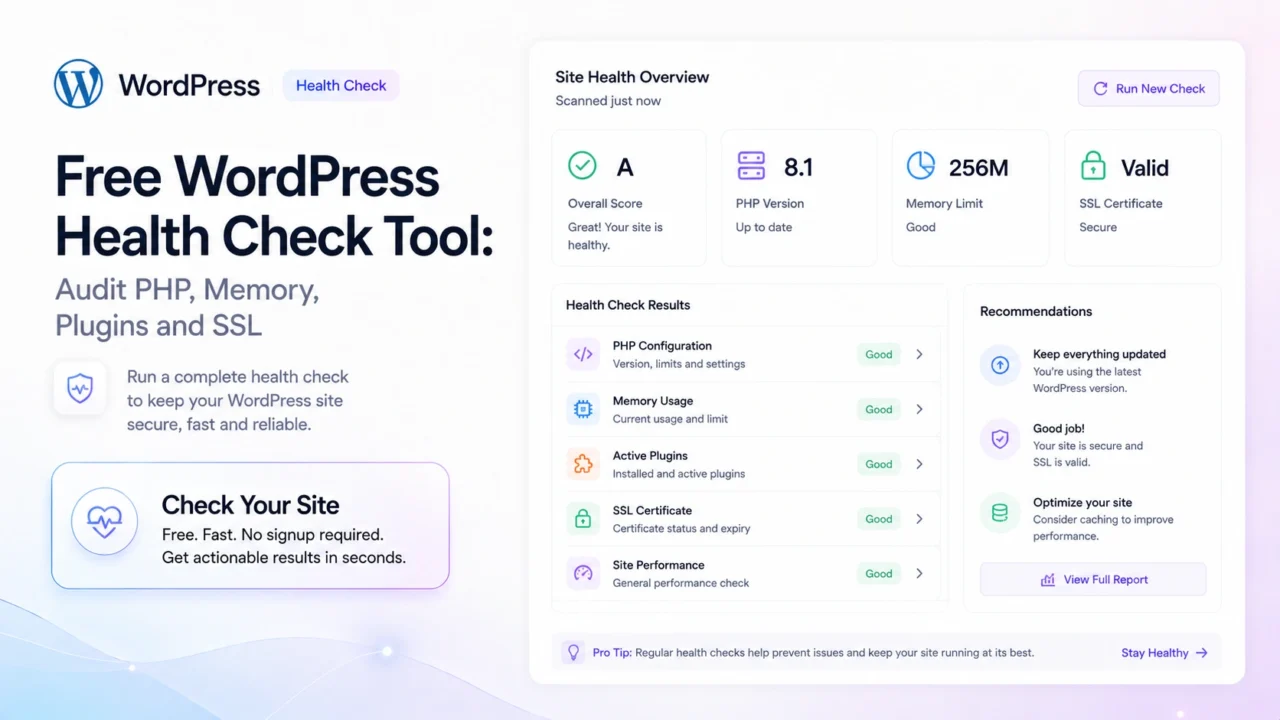
The fastest built-in health check: go to WordPress Admin > Tools > Site Health. WordPress audits PHP version, memory limit, active plugins, SSL, and database connection automatically. For a consolidated score with SSL expiry, use the free TopTut WordPress Health Check Chrome Extension. If your site scores below 70, start with PHP version and memory limit — those two fixes typically resolve the majority of critical warnings.
.p4 *, .p4 *::before, .p4 *::after { box-sizing: border-box; }
.p4 {
font-family: Georgia, serif;
color: #1a1a1a;
line-height: 1.8;
max-width: 820px;
}
.p4-meta {
font-family: system-ui, sans-serif;
font-size: 13px;
color: #64748b;
background: #f8fafc;
border: 1px solid #e2e8f0;
border-radius: 6px;
padding: 10px 18px;
display: inline-block;
margin-bottom: 30px;
}
.p4-meta strong { color: #0f172a; }
.p4-tool-hero {
background: linear-gradient(135deg, #1e1b4b 0%, #0f172a 60%, #0c2a1a 100%);
border-radius: 14px;
padding: 44px 40px;
margin: 0 0 40px;
text-align: center;
border: 1px solid #312e81;
position: relative;
overflow: hidden;
}
.p4-tool-hero::before {
content: “”;
position: absolute;
top: -60px;
right: -60px;
width: 220px;
height: 220px;
background: radial-gradient(circle, rgba(99,102,241,.18) 0%, transparent 70%);
pointer-events: none;
}
.p4-tool-hero .hero-eyebrow {
font-family: system-ui, sans-serif;
font-size: 11px;
font-weight: 800;
letter-spacing: 4px;
text-transform: uppercase;
color: #818cf8;
margin-bottom: 14px;
}
.p4-tool-hero h2 {
font-family: system-ui, sans-serif;
font-size: 28px;
font-weight: 800;
color: #ffffff;
margin: 0 0 12px;
line-height: 1.25;
}
.p4-tool-hero .hero-sub {
font-family: system-ui, sans-serif;
font-size: 16px;
color: #a5b4fc;
margin: 0 0 28px;
line-height: 1.6;
}
.p4-tool-hero .hero-checks {
display: flex;
flex-wrap: wrap;
justify-content: center;
gap: 10px;
margin-bottom: 30px;
}
.p4-tool-hero .hero-check {
background: rgba(99,102,241,.18);
border: 1px solid rgba(99,102,241,.35);
border-radius: 20px;
padding: 6px 14px;
font-family: system-ui, sans-serif;
font-size: 13px;
color: #c7d2fe;
font-weight: 500;
}
.p4-tool-hero .hero-check::before {
content: “✓ “;
color: #818cf8;
font-weight: 700;
}
.p4-tool-hero .hero-btn {
display: inline-block;
background: #6366f1;
color: #ffffff;
font-family: system-ui, sans-serif;
font-weight: 700;
font-size: 16px;
padding: 15px 34px;
border-radius: 10px;
text-decoration: none;
letter-spacing: .3px;
box-shadow: 0 4px 24px rgba(99,102,241,.35);
}
.p4-tool-hero .hero-btn:hover {
background: #4f46e5;
color: #ffffff;
}
.p4-tool-hero .hero-note {
margin-top: 14px;
font-family: system-ui, sans-serif;
font-size: 13px;
color: #6366f1;
}
.p4-qa {
background: #faf5ff;
border: 1px solid #d8b4fe;
border-left: 5px solid #a855f7;
border-radius: 8px;
padding: 22px 26px;
margin: 28px 0;
font-family: system-ui, sans-serif;
}
.p4-qa .qa-tag {
font-size: 10px;
font-weight: 800;
letter-spacing: 3px;
text-transform: uppercase;
color: #7e22ce;
margin-bottom: 10px;
}
.p4-qa p {
font-size: 15px;
color: #3b0764;
margin: 0;
line-height: 1.75;
}
.p4-tldr {
background: #0f172a;
border-left: 5px solid #a855f7;
border-radius: 10px;
padding: 28px 32px;
margin: 32px 0;
color: #f8fafc;
}
.p4-tldr .tldr-tag {
font-family: system-ui, sans-serif;
font-size: 10px;
font-weight: 800;
letter-spacing: 4px;
text-transform: uppercase;
color: #c084fc;
margin-bottom: 10px;
}
.p4-tldr h3 {
font-family: system-ui, sans-serif;
font-size: 18px;
font-weight: 700;
color: #ffffff;
margin: 0 0 14px;
}
.p4-tldr ul {
margin: 0;
padding-left: 20px;
}
.p4-tldr ul li {
font-family: system-ui, sans-serif;
font-size: 14px;
color: #c4b5fd;
margin-bottom: 8px;
line-height: 1.55;
}
.p4-tldr ul li strong { color: #f8fafc; }
.p4-tldr .tldr-note {
margin-top: 16px;
padding-top: 16px;
border-top: 1px solid #1e293b;
font-family: system-ui, sans-serif;
font-size: 13px;
color: #818cf8;
font-style: italic;
}
.p4-label {
display: block;
font-family: system-ui, sans-serif;
font-size: 10px;
font-weight: 800;
letter-spacing: 4px;
text-transform: uppercase;
color: #a855f7;
margin: 52px 0 6px;
}
.metric-grid {
display: grid;
grid-template-columns: repeat(auto-fit, minmax(240px, 1fr));
gap: 16px;
margin: 28px 0;
}
.metric-card {
border: 1px solid #e2e8f0;
border-radius: 10px;
overflow: hidden;
}
.metric-card-head {
padding: 14px 18px 12px;
display: flex;
align-items: center;
gap: 12px;
}
.metric-icon {
font-size: 22px;
line-height: 1;
flex-shrink: 0;
}
.metric-name {
font-family: system-ui, sans-serif;
font-size: 14px;
font-weight: 700;
color: #0f172a;
margin-bottom: 2px;
}
.metric-why {
font-family: system-ui, sans-serif;
font-size: 12px;
color: #64748b;
}
.metric-card-body {
padding: 14px 18px;
background: #f8fafc;
border-top: 1px solid #e2e8f0;
}
.metric-row {
display: flex;
justify-content: space-between;
align-items: center;
padding: 5px 0;
border-bottom: 1px solid #e2e8f0;
font-family: system-ui, sans-serif;
font-size: 13px;
}
.metric-row:last-child { border-bottom: none; }
.metric-row .mr-label { color: #64748b; }
.metric-row .mr-val { font-weight: 700; }
.val-good { color: #15803d; }
.val-warn { color: #b45309; }
.val-bad { color: #dc2626; }
.reco-table {
width: 100%;
border-collapse: collapse;
font-family: system-ui, sans-serif;
font-size: 14px;
margin: 24px 0;
}
.reco-table thead tr { background: #0f172a; }
.reco-table thead th {
padding: 12px 14px;
color: #f8fafc;
font-weight: 600;
text-align: left;
}
.reco-table thead th:first-child { border-radius: 8px 0 0 0; }
.reco-table thead th:last-child { border-radius: 0 8px 0 0; }
.reco-table tbody td {
padding: 11px 14px;
border-bottom: 1px solid #e2e8f0;
color: #334155;
vertical-align: top;
line-height: 1.6;
}
.reco-table tbody tr:nth-child(even) td { background: #f8fafc; }
.reco-table tbody td:first-child {
font-weight: 600;
color: #0f172a;
white-space: nowrap;
}
.reco-table code {
background: #f1f5f9;
padding: 2px 7px;
border-radius: 4px;
font-size: 12px;
font-family: “Courier New”, monospace;
}
.pill {
display: inline-block;
padding: 2px 10px;
border-radius: 12px;
font-size: 12px;
font-weight: 700;
}
.pill-green { background: #dcfce7; color: #15803d; }
.pill-amber { background: #fef3c7; color: #b45309; }
.pill-red { background: #fee2e2; color: #dc2626; }
.howto-block {
border: 1px solid #e2e8f0;
border-radius: 10px;
margin: 20px 0;
overflow: hidden;
}
.howto-head {
background: #1e1b4b;
padding: 14px 20px;
font-family: system-ui, sans-serif;
font-size: 15px;
font-weight: 700;
color: #c7d2fe;
display: flex;
align-items: center;
gap: 10px;
}
.howto-head .hh-icon { font-size: 16px; }
.howto-body {
padding: 18px 20px;
background: #fff;
font-family: system-ui, sans-serif;
font-size: 14px;
color: #334155;
line-height: 1.7;
}
.howto-body ol,
.howto-body ul {
padding-left: 20px;
margin: 10px 0;
}
.howto-body li { margin-bottom: 7px; }
.howto-body code {
background: #f1f5f9;
padding: 2px 7px;
border-radius: 4px;
font-size: 12px;
font-family: “Courier New”, monospace;
word-break: break-all;
}
.howto-body pre {
background: #0f172a;
color: #e2e8f0;
padding: 14px 16px;
border-radius: 8px;
overflow-x: auto;
font-size: 12px;
font-family: “Courier New”, monospace;
line-height: 1.7;
margin: 12px 0;
}
.howto-body pre .comment { color: #64748b; }
.howto-body pre .val { color: #86efac; }
.p4-callout {
border-radius: 8px;
padding: 18px 22px;
margin: 20px 0;
font-family: system-ui, sans-serif;
font-size: 14px;
line-height: 1.7;
}
.p4-callout .c-label {
font-size: 10px;
font-weight: 800;
letter-spacing: 3px;
text-transform: uppercase;
margin-bottom: 7px;
display: block;
}
.c-tip { background: #f0fdf4; border-left: 4px solid #22c55e; color: #14532d; }
.c-tip .c-label { color: #15803d; }
.c-warn { background: #fffbeb; border-left: 4px solid #f59e0b; color: #78350f; }
.c-warn .c-label { color: #b45309; }
.c-info { background: #eff6ff; border-left: 4px solid #3b82f6; color: #1e3a8a; }
.c-info .c-label { color: #1d4ed8; }
.c-purple { background: #faf5ff; border-left: 4px solid #a855f7; color: #3b0764; }
.c-purple .c-label { color: #7e22ce; }
.score-visual {
border: 1px solid #e2e8f0;
border-radius: 10px;
padding: 24px;
margin: 24px 0;
background: #f8fafc;
font-family: system-ui, sans-serif;
}
.score-visual .sv-title {
font-size: 13px;
font-weight: 700;
color: #0f172a;
margin-bottom: 16px;
letter-spacing: .3px;
}
.score-bar-row {
display: flex;
align-items: center;
gap: 12px;
margin-bottom: 10px;
}
.score-bar-row:last-child { margin-bottom: 0; }
.sbr-label {
font-size: 13px;
color: #334155;
width: 160px;
flex-shrink: 0;
}
.sbr-track {
flex: 1;
background: #e2e8f0;
border-radius: 6px;
height: 10px;
overflow: hidden;
}
.sbr-fill {
height: 10px;
border-radius: 6px;
}
.fill-green { background: #22c55e; }
.fill-amber { background: #f59e0b; }
.fill-red { background: #ef4444; }
.fill-blue { background: #6366f1; }
.sbr-val {
font-size: 13px;
font-weight: 700;
width: 60px;
text-align: right;
flex-shrink: 0;
}
.plugin-audit-table {
width: 100%;
border-collapse: collapse;
font-family: system-ui, sans-serif;
font-size: 13px;
margin: 20px 0;
}
.plugin-audit-table th {
background: #1e1b4b;
color: #c7d2fe;
padding: 11px 13px;
text-align: left;
font-weight: 600;
}
.plugin-audit-table td {
padding: 10px 13px;
border-bottom: 1px solid #e2e8f0;
color: #334155;
vertical-align: top;
}
.plugin-audit-table tr:nth-child(even) td { background: #f8fafc; }
.plugin-audit-table td:first-child {
font-weight: 600;
color: #0f172a;
}
.p4-faq {
border: 1px solid #e2e8f0;
border-radius: 8px;
margin-bottom: 12px;
overflow: hidden;
}
.p4-faq .faq-q {
font-family: system-ui, sans-serif;
font-size: 16px;
font-weight: 600;
color: #0f172a;
padding: 17px 22px;
background: #f8fafc;
border-bottom: 1px solid #e2e8f0;
}
.p4-faq .faq-a {
font-family: system-ui, sans-serif;
font-size: 15px;
color: #334155;
padding: 17px 22px;
line-height: 1.75;
}
.p4-faq .faq-a code {
background: #f1f5f9;
padding: 2px 7px;
border-radius: 4px;
font-size: 13px;
font-family: “Courier New”, monospace;
}
.p4-cta {
background: linear-gradient(135deg, #1e1b4b 0%, #0f172a 100%);
border-radius: 10px;
padding: 36px;
margin: 44px 0;
text-align: center;
border: 1px solid #312e81;
}
.p4-cta h3 {
font-family: system-ui, sans-serif;
font-size: 22px;
font-weight: 800;
color: #ffffff;
margin: 0 0 10px;
}
.p4-cta p {
font-family: system-ui, sans-serif;
font-size: 15px;
color: #a5b4fc;
margin: 0 0 22px;
line-height: 1.6;
}
.p4-cta a {
display: inline-block;
background: #6366f1;
color: #ffffff;
font-family: system-ui, sans-serif;
font-weight: 700;
font-size: 15px;
padding: 14px 30px;
border-radius: 9px;
text-decoration: none;
box-shadow: 0 4px 20px rgba(99,102,241,.4);
}
.p4-cta a:hover {
background: #4f46e5;
color: #ffffff;
}
@media (max-width: 620px) {
.p4-tool-hero { padding: 28px 20px; }
.p4-tool-hero h2 { font-size: 22px; }
.metric-grid { grid-template-columns: 1fr; }
.score-bar-row { flex-wrap: wrap; }
.sbr-label { width: 100%; }
.p4-cta { padding: 24px; }
}
Covers: WordPress 6.7 · PHP 8.x · All major hosts |
Updated: March 2026 |
By: Liza Kliko
Quick Answer — How to Check Your WordPress Site Health
To run a WordPress health check without any tools, go to WordPress Admin → Tools → Site Health. WordPress will audit your PHP version, HTTPS status, scheduled tasks, plugin updates, and server environment, then display a status of Good, Recommended, or Critical. For a faster check that works without logging in — including checking sites you do not manage — use the TopTut WordPress Health Check Chrome Extension, which reads environment data directly from any WordPress admin dashboard.
TL;DR
WordPress Health Check — What to Know
- Built-in tool: WordPress Admin → Tools → Site Health. Available on every WordPress installation 5.2+. Covers the most critical server and environment checks.
- PHP 8.2 or higher is the current WordPress recommended version. Running PHP 7.x can cost you server performance.
- 256MB memory limit is the minimum for sites with a page builder and standard plugins. WooCommerce stores need 512MB.
- More than 25 active plugins is a yellow flag. More than 40 is a red flag regardless of how lightweight each plugin claims to be.
- SSL check: Your certificate expiry date is visible in Chrome by clicking the padlock → Connection is secure → Certificate is valid.
- WordPress version: If you are more than one minor version behind, you should plan an update.
I built the WordPress Health Check tool after spending too many hours manually checking these same six metrics on client sites during audits. The Chrome Extension reads them all in one click from any WP admin dashboard.
Most WordPress problems I see on client sites — slow load times, plugin conflicts, random white screens, inexplicable 500 errors — trace back to the same six environment issues: outdated PHP, insufficient memory, too many active plugins, an expired SSL certificate, a stale WordPress version, or a server configuration that does not meet current recommendations.
The problem is that checking all six manually requires visiting three different places in your WordPress admin, reading your hosting control panel, and knowing what the recommended values actually are. For developers auditing client sites this adds up fast. For non-technical site owners it is impenetrable.
This article covers what a proper WordPress health check includes, what good vs. bad values look like for each metric, how to fix every common issue you might find, and how to run the same check on any WordPress site in 30 seconds using our free Chrome Extension.
The Six Metrics
What a WordPress Health Check Should Cover
WordPress’s own Site Health tool, found under Admin → Tools → Site Health, runs a good basic audit. But it misses a few things — specifically the metrics that developers care about most when auditing a site they did not build. Here is what a complete health check covers, and what each metric actually tells you:
⚙️
PHP Version
Server performance + security
Recommended8.2 or 8.3
Acceptable8.1
Outdated / fix now7.4 or below
End of life7.2, 7.3, 7.0
Recommended blog256MB+
Recommended WooCommerce512MB+
Minimum128MB
CriticalBelow 64MB
🔒
SSL Certificate
Security,
SEO, browser trust
Status: Valid✓ Active
Expiry: Soon<30 days
Status: ExpiredFix now
Mixed contentWarning
🔌
Active Plugin Count
Performance, conflict risk, maintenance
GoodUnder 20
Acceptable20–30
Review needed30–40
High conflict risk40+
🔄
WordPress Version
Security patches, feature access
Current6.7.x
Acceptable6.5–6.6
Update recommended6.3–6.4
Security riskBelow 6.0
⏱️
Max Execution Time
Import failures, timeout errors
Recommended60 seconds
Minimum30 seconds
WooCommerce / imports120–300s
Too lowBelow 30s
Manual Checks
How to Check Each Metric Without Any Tools
If you prefer to check these manually — or you need to walk a client through it — here is the exact path for each metric inside WordPress and your hosting panel.
⚙️ How to Check PHP Version in WordPress
Method 1 — WordPress Admin:
- Go to WordPress Admin → Tools → Site Health → Info
- Click Server to expand the section
- Look for PHP version
Method 2 — Hosting control panel: Log into your host dashboard and look for PHP Version selector or PHP Configuration.
Method 3 — PHP info file:
<?php phpinfo(); ?>
How to upgrade PHP: In your hosting control panel, look for PHP Version or PHP Configuration. Always test on staging before upgrading PHP on production.
🧠 How to Check WordPress Memory Limit
Method 1 — WordPress Admin:
- Go to WordPress Admin → Tools → Site Health → Info → Server
- Look for PHP memory limit
- Also check WordPress memory limit
The two values can differ. Your server might allow 512MB, but WordPress might only request 128MB.
How to increase the WordPress memory limit: add this line to wp-config.php above the stop editing comment:
define( 'WP_MEMORY_LIMIT', '256M' );
If that does not work, the server-level PHP limit is lower than what you are requesting. Contact your host or edit php.ini if your host allows it.
🔌 How to Audit Your Active Plugin Count
Go to WordPress Admin → Plugins → Installed Plugins. The count of active plugins is shown in the Active filter tab at the top.
For a proper plugin audit, install Query Monitor and review the Scripts and Styles panels on the front end.
The questions to ask about each active plugin:
- What specific problem does this solve?
- When was it last updated?
- Is it loading scripts on every page?
- Does Divi, WooCommerce, or WordPress core already provide this functionality?
| Plugin You Might Have |
Already Covered By |
| Contact Form 7 | Divi Contact Form module |
| WP Slider / MetaSlider | Divi Slider / Fullwidth Slider module |
| Coming Soon Page plugin | Divi built-in Coming Soon mode |
| Social sharing buttons plugin | Divi Social Follow module |
| Accordion / tabs plugin | Divi Accordion / Toggle modules |
| WP Google Maps basic embed | Divi Map module |
| Countdown timer plugin | Divi Countdown module |
| Pricing table plugin | Divi Pricing Table module |
🔄 How to Check Your WordPress Version
The fastest way: look at the bottom right of any WordPress admin screen. The version number is displayed there.
For the full picture: WordPress Admin → Dashboard → Updates. This shows your current version, available updates, and pending plugin or theme updates.
On updating WordPress
Always take a full backup before a major WordPress update. Minor updates within the same version are security patches and are usually safe to apply quickly. Major updates should be tested on staging first.
Health Score
How the WordPress Health Score Is Calculated
The TopTut WordPress Health Check tool outputs a score from 0 to 100. Here is how it is weighted, so you understand what each component contributes and where to focus first.
Health Score Weighting — 100 Points Total
SSL status & expiry
25 pts
Active plugin count
10 pts
| Score Range |
Status |
What It Means |
| 90–100 |
Excellent |
All metrics at recommended values. No action needed. |
| 70–89 |
Good |
Minor issues only. Schedule improvements. |
| 50–69 |
Needs Attention |
One or more significant issues affecting performance or security. |
| 25–49 |
Poor |
Multiple critical issues. Address urgently. |
| 0–24 |
Critical |
Expired SSL, end-of-life PHP, or severely insufficient memory. |
WordPress Native Tool
WordPress Site Health: What the Built-In Tool Checks
WordPress has included a native Site Health tool since version 5.2. It is worth knowing what it covers — and what it misses — before deciding whether you need an additional tool.
What WordPress Site Health checks:
- PHP version vs. WordPress recommended minimum
- HTTPS status
- Whether scheduled tasks are running correctly
- Plugin and theme update availability
- Database server version
- Whether loopback requests work
- Whether background updates are enabled
- Whether the REST API is accessible
What WordPress Site Health does NOT check:
- SSL certificate expiry date
- Active plugin count vs. recommended thresholds
- Page speed or performance metrics
- External resources loading over HTTP
- Whether plugins load scripts where they are unnecessary
Bottom line
WordPress Site Health is a solid first check. The Chrome Extension complements it by adding SSL expiry monitoring and a quick-check workflow for developers auditing multiple sites.
The Tool
TopTut WordPress Health Check — Chrome Extension
The Chrome Extension was built to solve a specific developer workflow problem: when you are auditing multiple client sites, logging into each WordPress admin, navigating to Tools → Site Health → Info, expanding the Server section, and reading the PHP version is tedious.
The extension reads environment data from the WordPress admin dashboard you are already looking at and surfaces it in one click, without navigating away from any page.
How it works:
- Install the extension from the Chrome Web Store.
- Log into any WordPress admin dashboard.
- Click the TopTut icon in your browser toolbar.
- The extension reads PHP version, memory limit, WordPress version, active plugin count, and SSL status from the page and displays them alongside your health score.
Privacy
The extension reads data from your WordPress admin page locally in your browser. No site data is transmitted to TopTut’s servers.
Install the Free WordPress Health Check Extension
One-click audit of PHP version, memory limit, SSL status, plugin count, and WordPress version — from any WordPress admin dashboard. Free forever, no account needed.
Get It Free on Chrome Web Store →
FAQ
Frequently Asked Questions
How do I run a WordPress health check?
The fastest built-in method: go to WordPress Admin → Tools → Site Health. WordPress audits your environment automatically and categorises issues as Good, Recommended, or Critical.
What is a good WordPress health score?
In the TopTut scoring system, 90–100 is Excellent, 70–89 is Good, 50–69 needs attention, and below 50 indicates significant issues.
How do I check PHP version in WordPress?
Go to WordPress Admin → Tools → Site Health → Info → Server and look for the PHP version entry. Alternatively, check your hosting control panel.
How do I check WordPress memory limit?
Go to WordPress Admin → Tools → Site Health → Info → Server → PHP memory limit. To increase the WordPress memory limit, add define( 'WP_MEMORY_LIMIT', '256M' ); to your wp-config.php file.
How many plugins is too many for WordPress?
There is no hard limit, but more than 40 active plugins significantly increases load time, maintenance burden, and conflict risk. Most well-built sites function well with 15–25 active plugins.
Is there a free WordPress site audit tool?
Yes. WordPress’s built-in Site Health tool is free and covers the most critical server environment checks. The TopTut WordPress Health Check Chrome Extension is also free and adds SSL expiry monitoring and a consolidated health score.
{
“@context”: “https://schema.org”,
“@type”: “FAQPage”,
“mainEntity”: [
{
“@type”: “Question”,
“name”: “How do I run a WordPress health check?”,
“acceptedAnswer”: {
“@type”: “Answer”,
“text”: “The fastest built-in method: go to WordPress Admin > Tools > Site Health. WordPress audits your environment automatically and categorises issues as Good, Recommended, or Critical.”
}
},
{
“@type”: “Question”,
“name”: “What is a good WordPress health score?”,
“acceptedAnswer”: {
“@type”: “Answer”,
“text”: “In the TopTut scoring system, 90-100 is Excellent, 70-89 is Good, 50-69 needs attention, and below 50 indicates significant issues.”
}
},
{
“@type”: “Question”,
“name”: “How do I check PHP version in WordPress?”,
“acceptedAnswer”: {
“@type”: “Answer”,
“text”: “Go to WordPress Admin > Tools > Site Health > Info > Server and look for the PHP version entry. Alternatively, check your hosting control panel.”
}
},
{
“@type”: “Question”,
“name”: “How do I check WordPress memory limit?”,
“acceptedAnswer”: {
“@type”: “Answer”,
“text”: “Go to WordPress Admin > Tools > Site Health > Info > Server > PHP memory limit. To increase the limit, add define(‘WP_MEMORY_LIMIT’, ‘256M’); to your wp-config.php file.”
}
},
{
“@type”: “Question”,
“name”: “How many plugins is too many for WordPress?”,
“acceptedAnswer”: {
“@type”: “Answer”,
“text”: “There is no hard limit, but more than 40 active plugins significantly increases load time and conflict risk. Most well-built sites function well with 15-25 active plugins.”
}
},
{
“@type”: “Question”,
“name”: “Is there a free WordPress site audit tool?”,
“acceptedAnswer”: {
“@type”: “Answer”,
“text”: “Yes. WordPress built-in Site Health tool is free and covers critical server environment checks. The TopTut WordPress Health Check Chrome Extension is also free and adds SSL expiry monitoring and a consolidated health score.”
}
}
]
}