
Easy Tutorial How to Turn A Daylight Photo into a Night Shot (Using Photoshop or CSS)

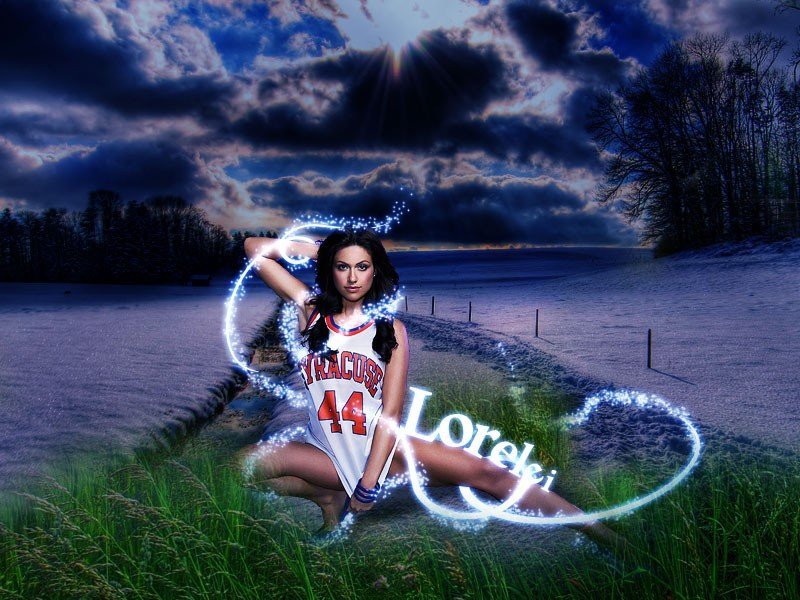
Design archive note: This tutorial is kept on TopTut as part of the Lorelei/TopTut design archive. For newer workflows, see free Adobe alternatives, Figma Community resources, AI image generators, and WordPress image workflows.
Last updated: 2026.
TL;DR
- You can turn a daytime photo into a convincing “night” shot entirely in CSS — no Photoshop, no re-shooting.
- The core trick stacks three things: a
filterto darken and color-shift the image, a semi-transparent blue/purple gradient overlay, and (optionally) amix-blend-modefor richer shadows. - It’s non-destructive: the original file never changes, so you can dial the effect up or down with a CSS variable or a slider.
- Works great for portfolio “before/after” sliders, seasonal theme switches, hero images, and lazy dark-mode hero banners.
- It won’t fool a pixel-peeping photographer — there’s no real relighting — but for web design purposes it reads as night at a glance.
Why CSS Instead of Photoshop?
Editing tools like Photoshop’s day-for-night technique still produce the most realistic results, but they bake the effect into a static file. CSS gives you something a design tool can’t: a live, adjustable effect that responds to user interaction, theme toggles, or scroll position — all without generating a second image file or hurting your page weight.
That makes it ideal for things like a light/dark theme toggle on a landing page hero, a “time of day” slider on a real-estate or travel site, or a hover effect on a product gallery.
The Three Ingredients
| Layer | CSS property | Job |
|---|---|---|
| 1. Tone shift | filter | Darkens the image and pushes the color temperature cool (blue) |
| 2. Color wash | gradient overlay via ::after | Adds the “moonlight” blue/purple cast real night photos have |
| 3. Depth (optional) | mix-blend-mode | Lets the overlay interact with the image instead of just sitting flat on top |
Step 1: Set Up the Markup
Wrap the image in a container. You’ll use the container to hold the gradient overlay, so the original <img> stays untouched in the DOM.
<div class="day-to-night">
  <img src="street-daytime.jpg" alt="City street in daylight" />
</div>
Step 2: Darken and Cool the Image With filter
This is the workhorse step. Four filter functions do almost all the work:
brightness()— pulls the overall exposure downcontrast()— keeps shadows from turning into flat gray mush as brightness dropssaturate()— night scenes read as slightly desaturated except for artificial light sourceshue-rotate()— nudges the color temperature toward blue/purple
.day-to-night img {
  display: block;
  width: 100%;
  height: auto;
  filter: brightness(0.45) contrast(1.2) saturate(0.8) hue-rotate(190deg);
  transition: filter 0.6s ease;
}
Load the page at this point and you already have a passable night look. But it’s flat — every pixel got the same math applied evenly, which real moonlight doesn’t do.
Step 3: Add a Moonlight Gradient Overlay
Real night photography has uneven light — darker at the edges, a cooler cast overall, sometimes a warm pool of light near a streetlamp. A radial or linear gradient on a pseudo-element fakes this cheaply.
.day-to-night {
  position: relative;
  overflow: hidden;
}

.day-to-night::after {
  content: "";
  position: absolute;
  inset: 0;
  background: radial-gradient(
    circle at 50% 40%,
    rgba(40, 50, 120, 0.15) 0%,
    rgba(10, 15, 45, 0.55) 75%
  );
  pointer-events: none;
}
pointer-events: none matters here — without it, the overlay sits on top of the image and blocks clicks or hover states you might want on the photo itself.
Step 4 (Optional): Blend the Overlay Instead of Stacking It
By default the gradient just sits flatly on top of the filtered image. Setting a blend mode on the overlay lets it interact with the pixels underneath, which reads as more atmospheric — closer to how light actually behaves at night.
.day-to-night::after {
  mix-blend-mode: multiply;
}
multiply deepens shadows without crushing them to pure black. overlay is a good alternative if you want more contrast punch; soft-light is gentler and works well on portraits where you don’t want harsh shifts on skin tones.
Step 5: Make It a Toggle (Optional but Recommended)
Because the whole effect lives in CSS, you can flip it with a single class instead of swapping image files — useful for a “day/night” button on a hero banner.
.day-to-night img {
  filter: brightness(1) contrast(1) saturate(1) hue-rotate(0deg);
  transition: filter 0.6s ease;
}

.day-to-night.is-night img {
  filter: brightness(0.45) contrast(1.2) saturate(0.8) hue-rotate(190deg);
}

.day-to-night::after {
  opacity: 0;
  transition: opacity 0.6s ease;
}

.day-to-night.is-night::after {
  opacity: 1;
}
<button onclick="document.querySelector('.day-to-night').classList.toggle('is-night')">
Toggle Night Mode
</button>The Full Snippet
.day-to-night {
  position: relative;
  overflow: hidden;
}

.day-to-night img {
  display: block;
  width: 100%;
  height: auto;
  filter: brightness(1) contrast(1) saturate(1) hue-rotate(0deg);
  transition: filter 0.6s ease;
}

.day-to-night::after {
  content: "";
  position: absolute;
  inset: 0;
  background: radial-gradient(
    circle at 50% 40%,
    rgba(40, 50, 120, 0.15) 0%,
    rgba(10, 15, 45, 0.55) 75%
  );
  mix-blend-mode: multiply;
  opacity: 0;
  pointer-events: none;
  transition: opacity 0.6s ease;
}

.day-to-night.is-night img {
  filter: brightness(0.45) contrast(1.2) saturate(0.8) hue-rotate(190deg);
}

.day-to-night.is-night::after {
  opacity: 1;
}
Tuning Tips
| If the result looks… | Adjust |
|---|---|
| Too purple / not blue enough | Lower hue-rotate() toward 180deg for a cooler, more neutral night blue |
| Too dark to read any detail | Raise brightness() to 0.55–0.6 and lean more on the gradient for mood instead |
| Flat, no depth | Add or strengthen mix-blend-mode: multiply on the overlay |
| Skin tones look sickly (portraits) | Drop hue-rotate() to 160–170deg and use soft-light instead of multiply |
| Photo has bright windows/lamps you want to “glow” | Add a second radial-gradient positioned over the light source with screen blend mode and a warm color (e.g. rgba(255,200,120,0.4)) |
Limitations to Know Going In
- This is a color/tone trick, not true relighting — shadows still fall the way they did in the original daylight shot, so very direct/harsh sun shadows can look slightly off.
- It performs best on photos with even, diffused daylight (overcast skies, shaded streets) rather than a shot with a blazing sun directly in frame.
filterandmix-blend-modeare GPU-accelerated in every modern browser, but test on lower-end mobile devices if you’re applying it to several images on one page — stack too many and you can introduce jank on scroll.
FAQ
Can I do this without editing the original image file?
Yes — that’s the whole point of the CSS approach. The filter and overlay are applied at render time, so the source file on your server never changes.
Will this affect page load performance?
filter and mix-blend-mode are handled by the GPU in modern browsers, so the performance cost is minimal for a handful of images. It adds no extra HTTP requests since there’s no second image file to load.
Does this work on background images too, not just <img> tags?
Yes. Apply the filter directly to the element with background-image set, and add the gradient overlay the same way with a pseudo-element.
Photoshop Version
In this tutorial, you will learn how to turn a daylight photo into a nightshot, in just a few easy steps. Photoshop has several functions for editing photos. By working with layers you are able to create images that are realistic as it is created. The video below explains step by step how you convert a day photo into a night photo, using layers.
The explanation starts with two photos side by side: A photo taken during the day and a photo at night with a full moon. The first step is to select and remove the day of air. Then place the night photo. To really make the photo look like it was taken in the dark, make a layer that is darker. In the end, you get a realistic result.
I get a lot of emails from beginners who want to learn the advanced tutorials that involve glow and sparkles effects, yet they are not very familiar with the pen tool and other tools that require a little bit of experience and knowledge, even if these tools seem basic to most of you. So, I decided to put up a tutorial that will allow beginners who are not yet familiar with Photoshop, to get started, make sparkles, glow and twirls without mastering the pen tools skills any deeper.
We will be making this tutorial, which will only be constructed from 3 images, 1 shape and a lot of basic Photoshop commands that will allow us to make a really cool composition… or shall I say — “hot”..? Please feel free to leave a comment or submit your result to our Flickr group.
How to Turn a daylight photo into a Night Shot – Step 1:
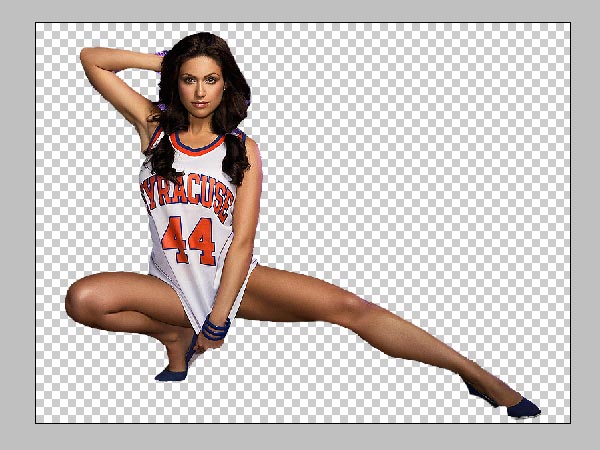
Crop the girl out of the image; it does not really matter hat method you use to chop the edges and background away, as long as you have the edges defined. We are not going to get into great details here as cropping is an ultra basic technique, all I’d say is that I used the Magnetic Lasso Tool to roughly extract the lady from the background. Don’t worry about the rough edges if you have any, we will be using a lot of filters so any mishaps will disappear later on.
How to Turn a daylight photo into a Night Shot – Step 2:
Place the lady over the winter landscape and desize, according to your needs. We scaled the image down to about 60% and placed it in the middle of the canvas.
How to Turn a daylight photo into a Night Shot – Step 3
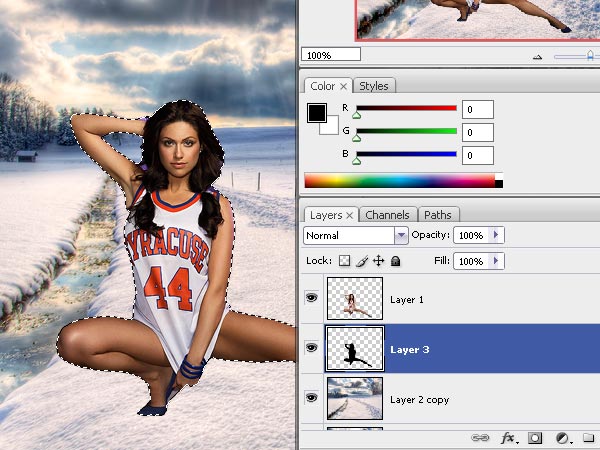
Now we need to make the girl’s image look like it’s blending in organically, and the easiest way to do so is to add a shadow that falls on the snow. Select the woman’s layer, and once you made the selection, create a New Layer underneath the girl’s image layer, and fill that selection with solid black color #000000.
Step 4
Now we are going to transform the selection, while the layer is still selected, press Ctrl + T and lay the shadow down, just the way you see in the illustration. Make sure that the shadow begins from lady’s legs, because when you start transforming, the shadow will move from under her legs and the only way to fix this is by dragging the bottom corners and adjusting them to “fit” to the main object.
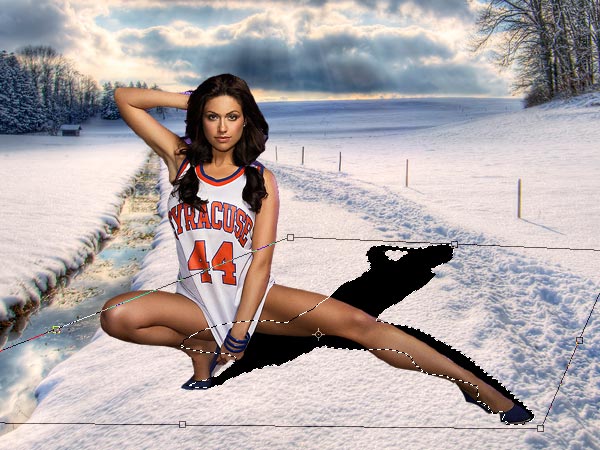
Applied the shadow? Pressed “Enter”? Great, now Go to Filter >> Blur >> Gaussian Blur and apply mild blur — remember that shadows can never really be sharp.
Reduce the opacity of the shadow and set the blending mode to “Multiply”.
Step 6
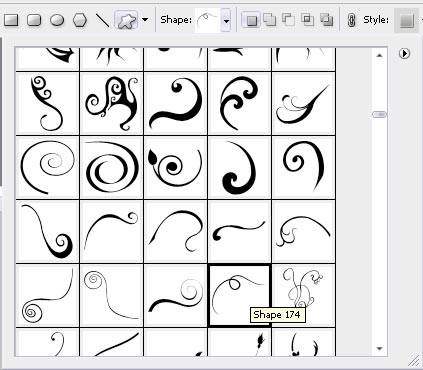
Next, we are going to add these little twirls. Now the most common problem most beginner Photoshop users encounter is that in order to draw these twirly lines you need to have a great deal of experience with Photoshop. We are going to use Twirly shapes which you can download here.
Select any of them which you like most and using any color (we are going to overwrite these settings later) draw the shape.
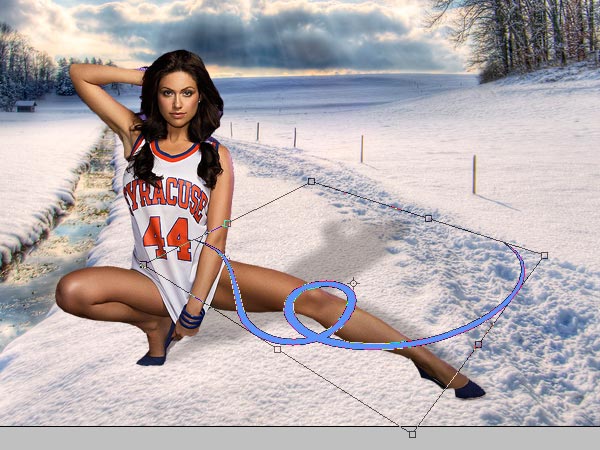
Press Ctrl + T to transform the shape so that it will have more depth, creating the illusion that it “lays” on the flow surrounding the leg.
Step 7
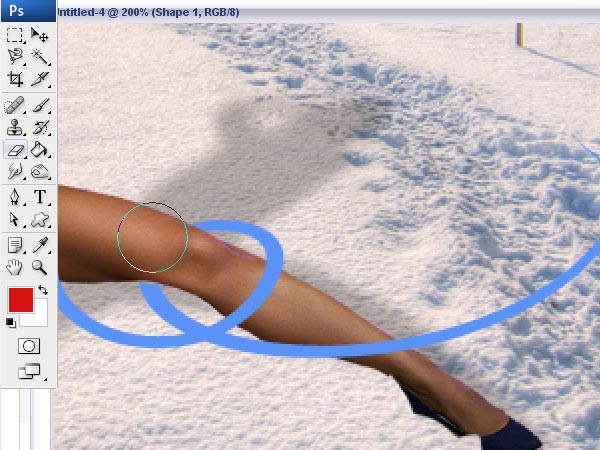
The easiest way we are going to do it Resterize the shape.
Then, select the eraser tool and using a brush with a sharp edge, remove the shape from ONE part of the leg. Be sure that you don’t remove from too many places otherwise the illusion of wrapping the leg will disappear..
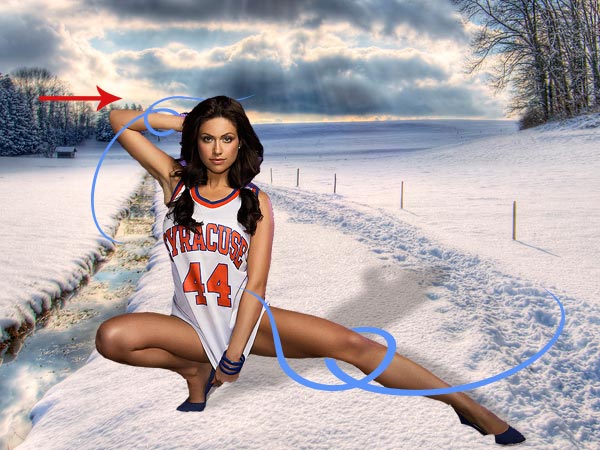
Apply the same steps on the lady’s arm. Don’t worry that the edges of the shapes don’t “meet” — we will complete these steps and add everything we need in next steps.
Step 8
Merge both twirl layers and go to Layer Styles, apply the following settings for Outer Glow and Color Overlay with pure white.
This will give your shape a very strong and visible glow.
Step 9
Get back to the background layer (winterscape) and go to Image >> Adjustments >> Exposure. Apply the following settings to reduce the lightness of the image, basically what reducing exposure does is simply making the image darker, while preserving the light spots, which is important in our case.
Step 10.
As you can see, now the background and the main character in our tutorial look way too different, so what we are going to do is — duplicate the lady’s layer and hide one of them for now. We will need it later so do NOT delete it. Using the layer that remained visible, go to Image >> Adjustments >> Match Color.
Match the lady’s color with the background, IN the body of your composition.
You see, not it looks so much more organic and blends in nicely into the low contrast background we currently have.
Step 11
Now we are going to add sparkles to the twirly lines. As I said in the beginners, this tutorial was designed for beginners, so we are going to use the easiest techniques here. Select the brusg tool and go to the brushes interface bu pressing F5.
Apply the following settings to the Brush Presets. Our aim is to create small, chaotically spread dots, that will eventually become sparkles. This is absolutely easy and will require only the very basic Photoshop skills, as long as you follow the right settings for “Scattering“:
Step 12
The next step is to add the sparkles. You can work directly on the layer with twirls, which will save you the work of apply the same Layer Style afterward, however if you are not sure that you will achieve the best result right away, create a new layer and simply draw twirls over the existing ones and around the lady, in places it’s not been done with the shape we used. be sure to add sparkles to places where the cropping was poor, in our case it’s the feet area. Also, it’s a good idea to add sparkles around the hair as it makes the edges look smoother.
Once you have done that, we can move on to overall image effects and moving to the lucky step:
Step 13
Create a new layer. Using #7283a8 as your foreground color and #c3cfd7 as your background, go to
Filter >> Render >> Clouds and create a full layer just filled with mild clouds. Once it’s ready, set its’ blending mode to “Overlay” and reduce the opacity to 80% (or less, if your image turns out too light).

Step 14
Merge the lady’s layer with the background and go to Image >> Adjustments >> Levels, making the whole layer darker and more dramatic, in our example we moved the middle (gray) arrow to 0.38
Step 15
Pick the last remaining image with grass, paste it unto the composition on top of all the other layers and using a big (150+ pixels soft edge brush, remove the remains of the grass leaving it only at the bottom of our collage. beginners always have a hard time cropping grass — it’s indeed a very hard task, but simply using a huge soft eraser tool does pretty much this trick as we don’t see the edges very clearly..
Step 16
Create a new layer and fill it fully with the color #1a346e. Set the blending mode of this layer to “Soft Light”. Make sure that this layer lies on top of ALL the other layers, including the grass as we want to make the composition organically blended, even if it’s not entirely realistic.
Step 17
Adding text to the girl’s leg. Using any font you find fit, but preferably an old looking one like Times New Roman, for example.
We used the font Arno Pro Semi bold.
This is going to be a detailed job. Using a big capital letter, type the first letter of your word and place it over the girl’s leg, making it look like the letter is actually standing on it. Using Ctrl + T transform command to rotate the letters in the right tangle. Your next letter would not be in caps and it will be about 5 pixels less in sixe, just change the size of the font and place your next letter in the same fashion. You may even want to go farther and make the letters look like they lay and fall to the side, by simply overdoing the Ctrl + T command, and rotating the letter too much to the side.

Make sure that each next letter is smaller than the previous one, so that the last one will be significantly smaller than the first.

Apply the following Layer Styles to add the same glow as we did with the twirls and stars / sparkles.

This is what you will get once the Layer Styles have been applied…

Step 18
Last step is going to add a little life to our frosty blue and lifeless composition. Remember that Lady’s layer we duplicated and hid for the time being? Now it’s time to bring it back, siply enable the previous back and without changing its position on the canvas, drag it in the layers palette on top of all the others, this way you will have a much more colorful main character on a cold white background. For your convenience I am adding a list of all the layers and their sequence that you should have on your canvas.

That’s it, here is your result and I hope you enjoyed the tutorial! Please subscribe to our RSS feed by email, to get the full next tuts directly to your inbox.

Bottom Line
You don’t need a second photo or a photo editor to sell a “night” version of a daytime shot on the web — a filter stack plus a blended gradient overlay gets you most of the way there, and because it’s pure CSS, it’s animatable, toggleable, and completely reversible. Start with the full snippet above, then tune brightness, hue-rotate, and blend mode to match the mood you’re going for.




Comments are closed on this article.