
Syncing Google Sheets to WordPress Custom Fields: Live Bidirectional Sync with n8n and ACF (2026)

⚡ The “Quick Start” Summary
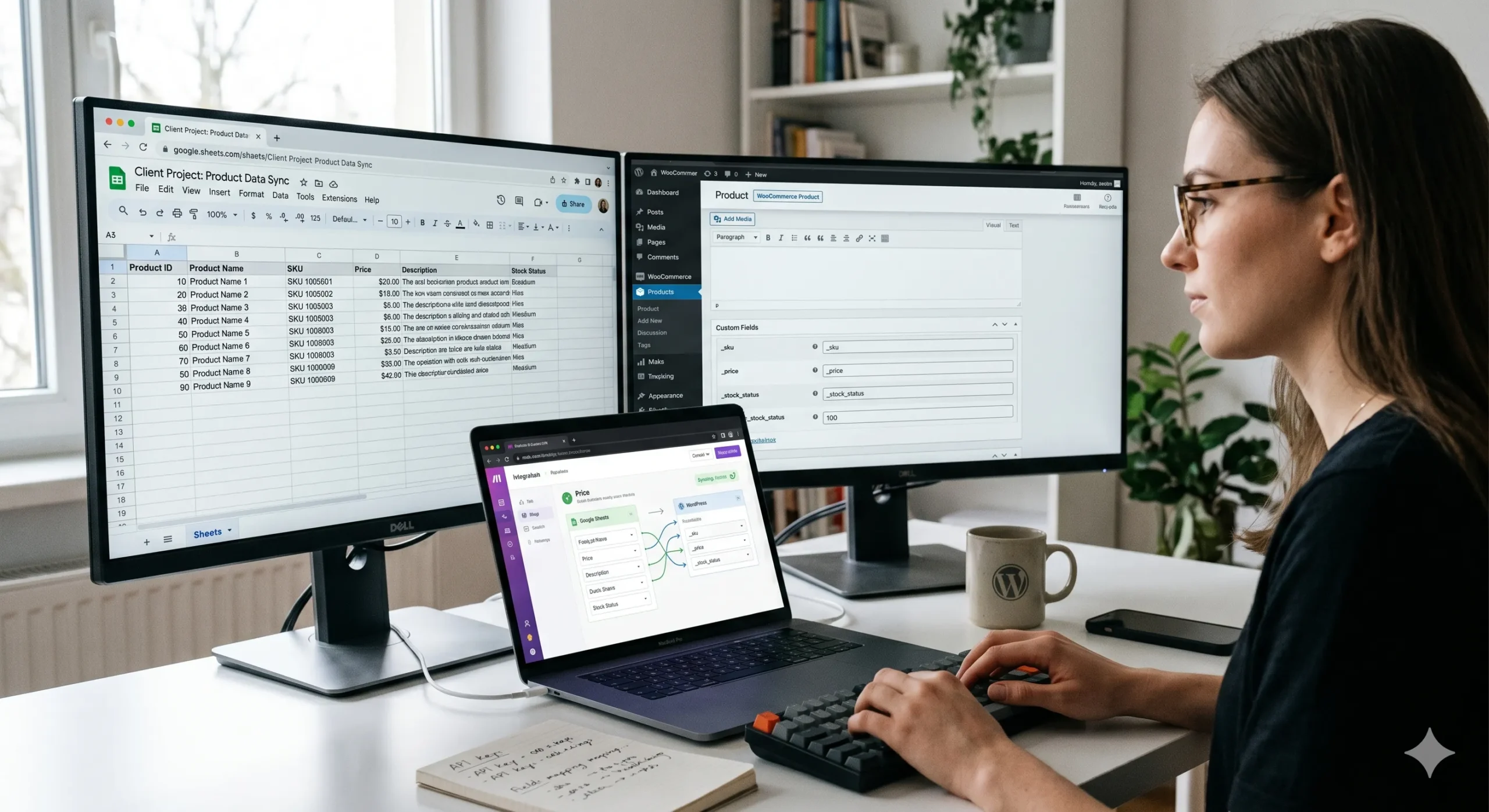
Stop treating your website like a digital filing cabinet where you have to manually shove CSV files every Friday. The professional way to connect Google Sheets to WordPress is a “live sync.” By using n8n (the automation brain) and Advanced Custom Fields (ACF), you can turn your spreadsheet into a remote control for your website. When you change a price or a description in your Sheet, it updates on WordPress instantly. If you’re feeling fancy, you can even make it work both ways: edit on your site, and the spreadsheet updates itself. No more manual imports. No more broken rows. Just data that works.
Let’s be honest: CSV imports are the “floppy disks” of the modern web. They were great in 2005, but today, they’re just a recipe for a headache.
If you’ve ever spent three hours preparing a spreadsheet, only to have the import fail because of a stray comma or a “server timeout,” you know exactly what I mean. Manually importing data is tolerable if you do it once a year. But if you’re managing a product catalog, a directory, or a price list that changes weekly, you aren’t “managing a site”—you’re doing data entry for a machine that should be doing it for you.
In 2026, we have a better way. We use Google Sheets because it’s easy to collaborate in, but we treat it as a live data layer. By connecting it to WordPress via the ACF REST API and n8n, we build a “bridge” that allows data to flow back and forth automatically. It’s cleaner, it’s faster, and it’s significantly less likely to make you want to throw your laptop out a window.
The Basics: How Google Sheets Talks to WordPress
When we talk about Google Sheets to WordPress automation, we’re essentially giving these two platforms a way to “chat” without you being the messenger.
To do this, we use three specific tools that each play a different role:
- Google Sheets: The Editor’s Desk. It’s where your team types in the info.
- Advanced Custom Fields (ACF): The Storage Unit. It creates custom slots in WordPress for things like “Price,” “SKU,” or “Author Bio.”
- n8n: The Courier. It watches the Sheet for changes and drives the data over to WordPress.
Why “Bidirectional” is the Goal
A one-way sync is like a megaphone: you shout from the spreadsheet and WordPress listens. A bidirectional sync is a conversation. If an editor fixes a typo directly in the WordPress dashboard, the change is sent back to the Google Sheet. This keeps your spreadsheet from becoming an outdated relic.
The 5-Step Sync Framework
| Step | The Technical Action | What It Actually Means |
|---|---|---|
| 1 | Link Post IDs | Give every row an ID badge so the systems don’t get confused. |
| 2 | n8n Monitoring | Set up a digital guard who watches your Sheet 24/7 for changes. |
| 3 | ACF REST Setup | Open the side door in WordPress so n8n can walk in and deliver data. |
| 4 | Field Mapping | Tell n8n: “This column in Sheets goes into THIS box in WordPress.” |
| 5 | Conflict Rules | Decide who wins if someone edits the same thing in both places at once. |
Why ACF is the Secret Ingredient
WordPress handles “Titles” and “Content” fine. It’s terrible at “Shoe Size,” “Ingredient Lists,” or “Discount Percentages” on its own. That’s what Advanced Custom Fields (ACF) is for.
The gotcha that trips up nearly every beginner: by default, WordPress hides ACF fields from the outside world. To fix this, go into your ACF Field Group settings and toggle the switch that says “Show in REST API.” If you skip this step, n8n will knock on the door of your website and WordPress will pretend it doesn’t know what you’re talking about.
Building the “Shared Key” Strategy
If you want a sync to stay sane, you need a Shared Key — the “Social Security Number” for your data. You cannot tell n8n to “update the post about the Blue Shirt.” What if you have three blue shirts? Chaos.
Your Google Sheet needs a column for the WordPress Post ID. When n8n sees that Row #5 has Post ID 1024, it knows exactly which page to update. No guessing. No duplicates. Just precision.
The n8n Logic Flow (In Plain English)
When you build this in n8n, your workflow runs through five decision points:
- Trigger: “Did Row 15 in Google Sheets just change?”
- Retrieval: “Grab the data from that row — I see a new price of $49.”
- Identification: “This row belongs to Post ID 1024.”
- Delivery: “Updating the ACF field
product_pricefor post 1024 to $49.” - Confirmation: “Done — writing a timestamp to the Sheet so humans know I ran.”
Common Beginner Mistakes (And How to Avoid Them)
1. The Ghost Field: Forgetting to enable “Show in REST API” in ACF is the #1 reason these workflows fail. If n8n returns a 404 or “Property not found,” check your ACF settings first.
2. Formatting Nightmares: Google Sheets is flexible. WordPress is strict. If your Sheet sends a date as 25/12/26 and WordPress expects 2026-12-25, the sync breaks. Use n8n’s built-in formatters to normalize data before it hits the API.
3. The Loop of Doom: A poorly configured bidirectional sync creates an infinite loop: Sheet updates WordPress, WordPress updates the Sheet, the Sheet updates WordPress… The fix is a “Last Updated By” column. Tell n8n to skip the update if the value is “n8n.”
💡 Pro-Tip: Sync More Than Text
Don’t limit this to text fields. You can sync Categories, Tags, and Featured Images too. Store the image URL in your Google Sheet, tell n8n to download it and set it as Featured Media, and your spreadsheet becomes a full-blown remote content management dashboard.
Why This Matters: The Real ROI
The teams that win with content operations aren’t the ones who work harder — they’re the ones who stop doing work that a machine can do in milliseconds. Manual CSV imports belong in 2014.
Most teams already live in Google Sheets. They collaborate there, track inventory there, and build plans there. Formalizing that Sheet as a live data layer means you stop fighting against your team’s existing habits and start working with them. You give them a tool they already know. You give WordPress the structured data it needs. And you give yourself back the hours you used to spend being a human copy-paste button.
FAQ: Google Sheets to WordPress Custom Fields
Do I need a plugin to sync Google Sheets to WordPress custom fields?
No plugin handles this well out of the box. The professional approach is n8n (self-hosted or cloud) connected to WordPress via the REST API. n8n polls or watches your Sheet for changes, reads the updated row, and sends the data to the ACF REST endpoint for the relevant post. No plugin required, no import/export step, no manual anything once the workflow is live.
How do I enable ACF custom fields in the WordPress REST API?
In your WordPress admin, go to Custom Fields, open the Field Group you want to expose, click the Settings tab, and toggle Show in REST API to on. Save. That is the only step. Without this, any API request to read or write those fields returns nothing — WordPress silently ignores them. This is the single most common reason n8n workflows fail on the first run.
What is the best way to identify which WordPress post to update from a Google Sheet row?
Add a WordPress Post ID column to your Sheet. When you create or import posts, write the post ID back into the Sheet. n8n uses that ID in the API endpoint path (/wp-json/wp/v2/posts/{id}) to update the exact correct post. Matching on titles or slugs is brittle — titles change, slugs get updated, and you end up with silent mismatches. Post ID is the only reliable key.
How do I set up a bidirectional sync without creating an infinite loop?
Add a Last Updated By column to your Sheet and set it to the name of whatever system wrote the last change (“n8n” or “human”). In your n8n workflow, add a condition at the top: if Last Updated By equals n8n, skip the update. This prevents the feedback loop where n8n writes to WordPress, WordPress triggers a webhook back to n8n, and n8n writes to the Sheet again indefinitely.
Can I sync images from Google Sheets to WordPress featured media?
Yes. Store the image URL in a Sheet column, then in n8n use the HTTP Request node to download the image as binary data, followed by a WordPress node to upload it to the Media Library, and then a second WordPress node to set the returned media ID as the post’s featured_media field. It is a three-step mini-workflow inside the main sync, but it works reliably and eliminates the need to manually upload featured images for every post.
{
“@context”: “https://schema.org”,
“@type”: “FAQPage”,
“mainEntity”: [
{
“@type”: “Question”,
“name”: “Do I need a plugin to sync Google Sheets to WordPress custom fields?”,
“acceptedAnswer”: {
“@type”: “Answer”,
“text”: “No plugin handles this well out of the box. The professional approach is n8n connected to WordPress via the REST API. n8n watches your Sheet for changes and sends data to the ACF REST endpoint for the relevant post — no import/export step required.”
}
},
{
“@type”: “Question”,
“name”: “How do I enable ACF custom fields in the WordPress REST API?”,
“acceptedAnswer”: {
“@type”: “Answer”,
“text”: “In WordPress admin, go to Custom Fields, open your Field Group, click Settings, and toggle ‘Show in REST API’ to on. Without this, API requests for those fields return nothing silently.”
}
},
{
“@type”: “Question”,
“name”: “What is the best way to identify which WordPress post to update from a Google Sheet row?”,
“acceptedAnswer”: {
“@type”: “Answer”,
“text”: “Add a WordPress Post ID column to your Sheet. n8n uses that ID in the endpoint path (/wp-json/wp/v2/posts/{id}). Matching on titles or slugs is brittle — Post ID is the only reliable key.”
}
},
{
“@type”: “Question”,
“name”: “How do I set up a bidirectional sync without creating an infinite loop?”,
“acceptedAnswer”: {
“@type”: “Answer”,
“text”: “Add a ‘Last Updated By’ column to your Sheet. In n8n, add a condition: if Last Updated By equals ‘n8n’, skip the update. This prevents the feedback loop where n8n triggers itself indefinitely.”
}
},
{
“@type”: “Question”,
“name”: “Can I sync images from Google Sheets to WordPress featured media?”,
“acceptedAnswer”: {
“@type”: “Answer”,
“text”: “Yes. Store the image URL in a Sheet column. In n8n, use an HTTP Request node to download the image, a WordPress node to upload it to the Media Library, then a second WordPress node to set the media ID as featured_media on the post.”
}
}
]
}